Install, sign in, update
Vonkcad installs on your Windows PC and is used with the account you created on vonkcad.be.
Video coming soon
Download and install
Where
- vonkcad.be
- My area
- Sign in on vonkcad.be with the account that was given access.
- Download the installer and run it.
- Choose the software language: English, French, Dutch or German.
Sign in
Where
- First start-up
- Sign-in
- Enter the e-mail address and password of your vonkcad.be account.
- The computer is registered: you will not have to sign in at every start-up.
Good to know
Vonkcad works for 48 hours without Internet. During the last 24, it reminds you to reconnect.
Explore the example project
Where
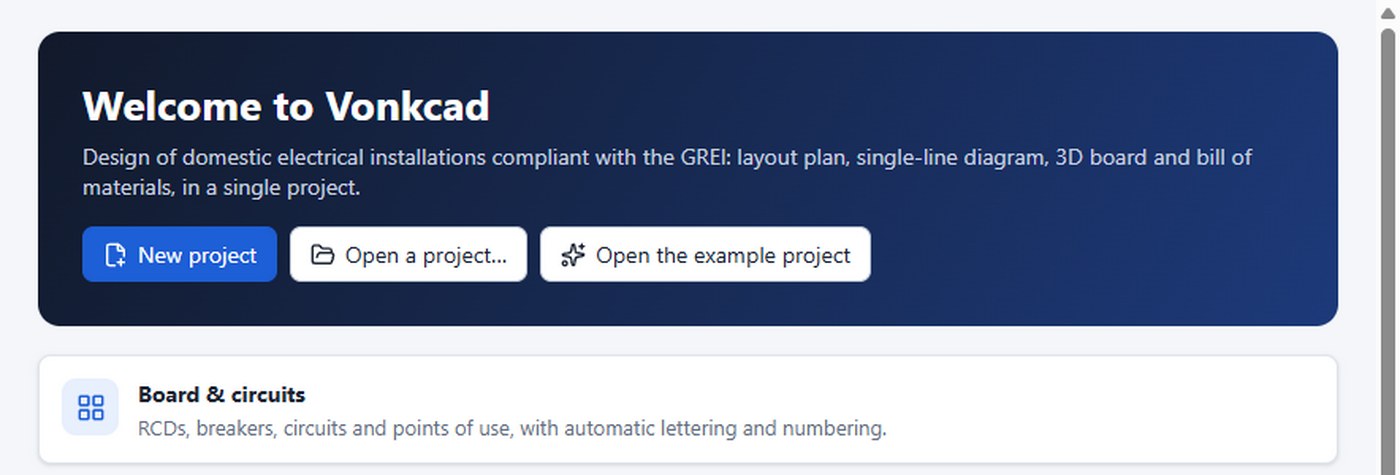
- Home
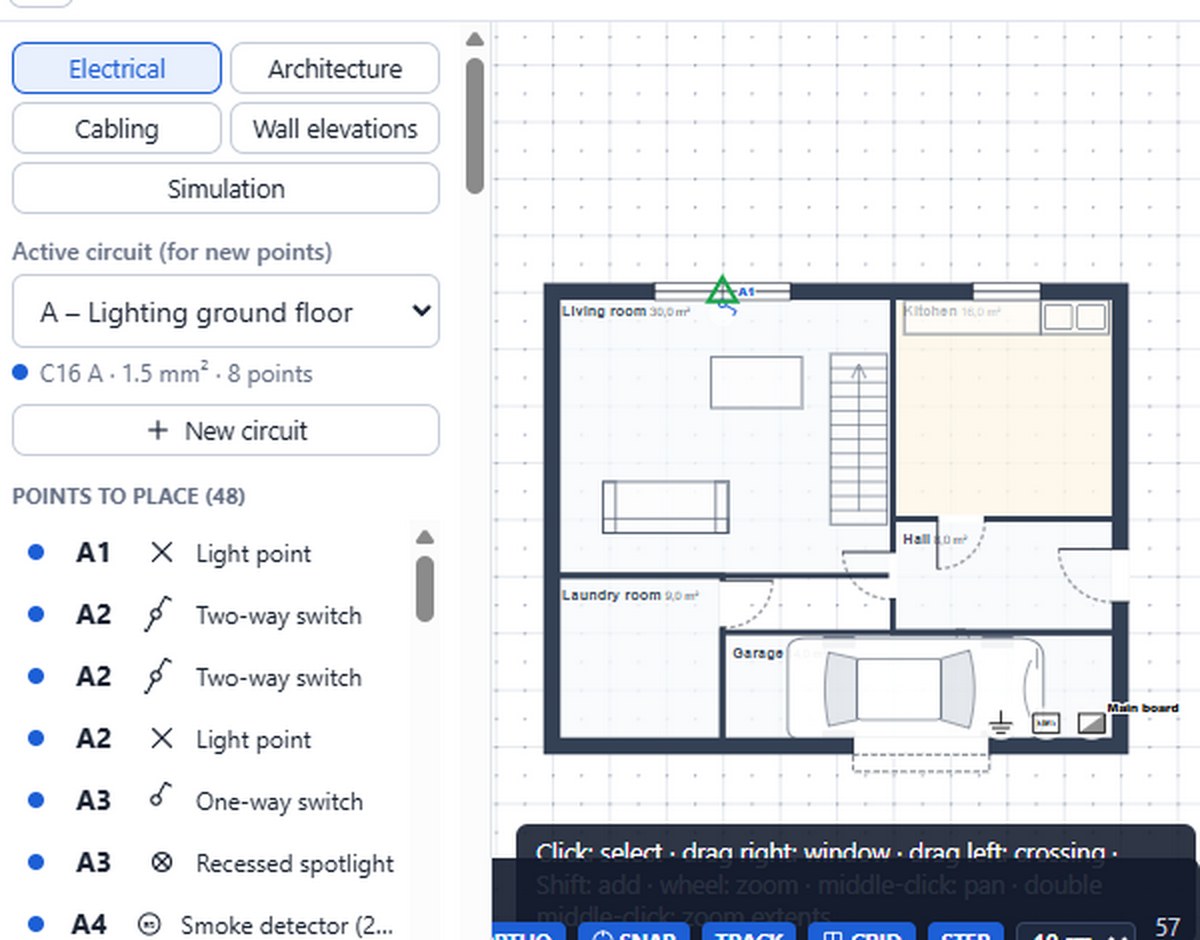
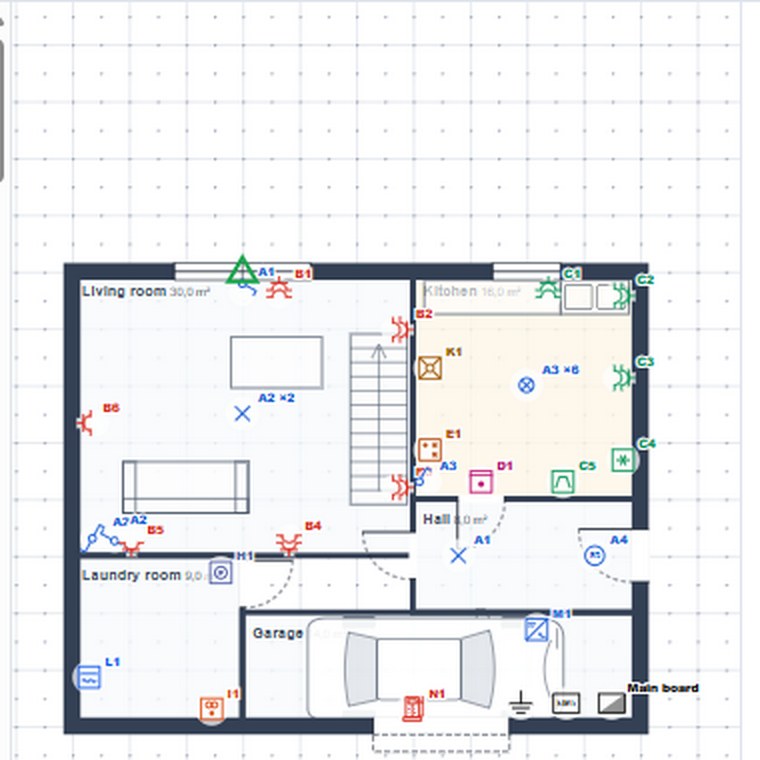
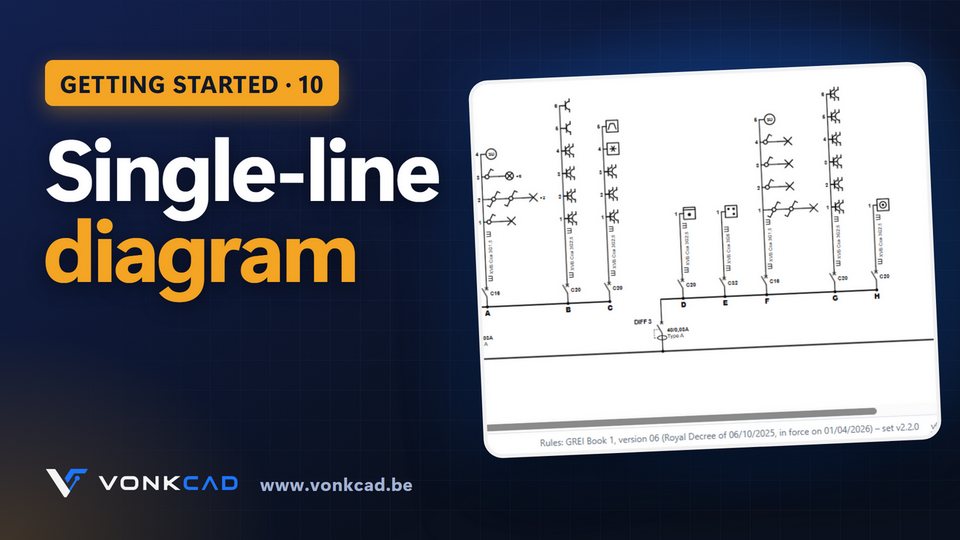
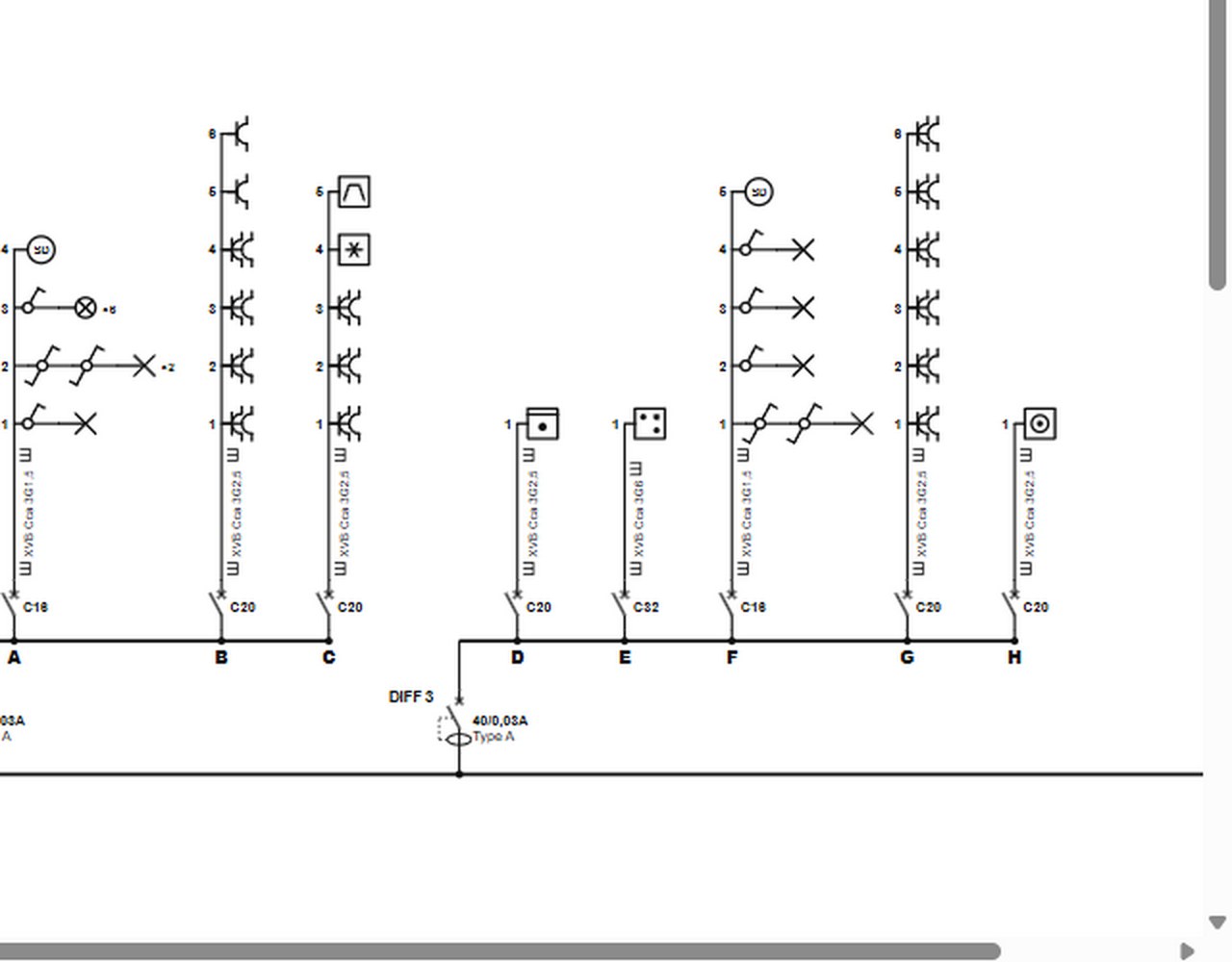
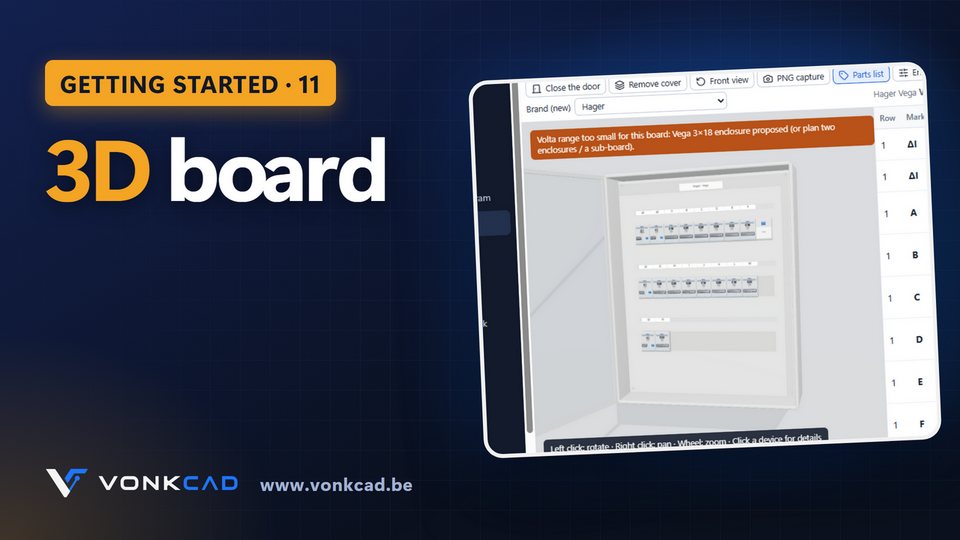
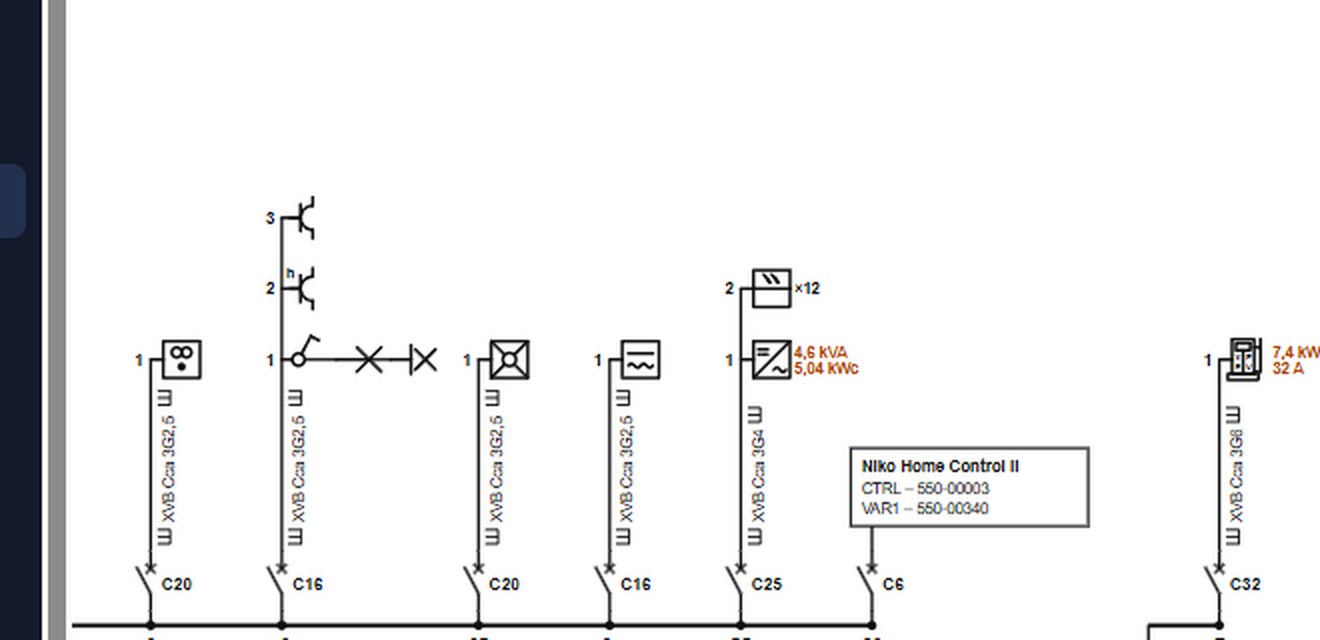
- Click “Open the example project”: a complete house, with plans, board, single-line diagram and measurements.
- Browse the screens from the left-hand menu: each chapter of this guide follows one of them.
Update
Where
- Top bar
- Update: restart
- At start-up, Vonkcad downloads the new version in the background.
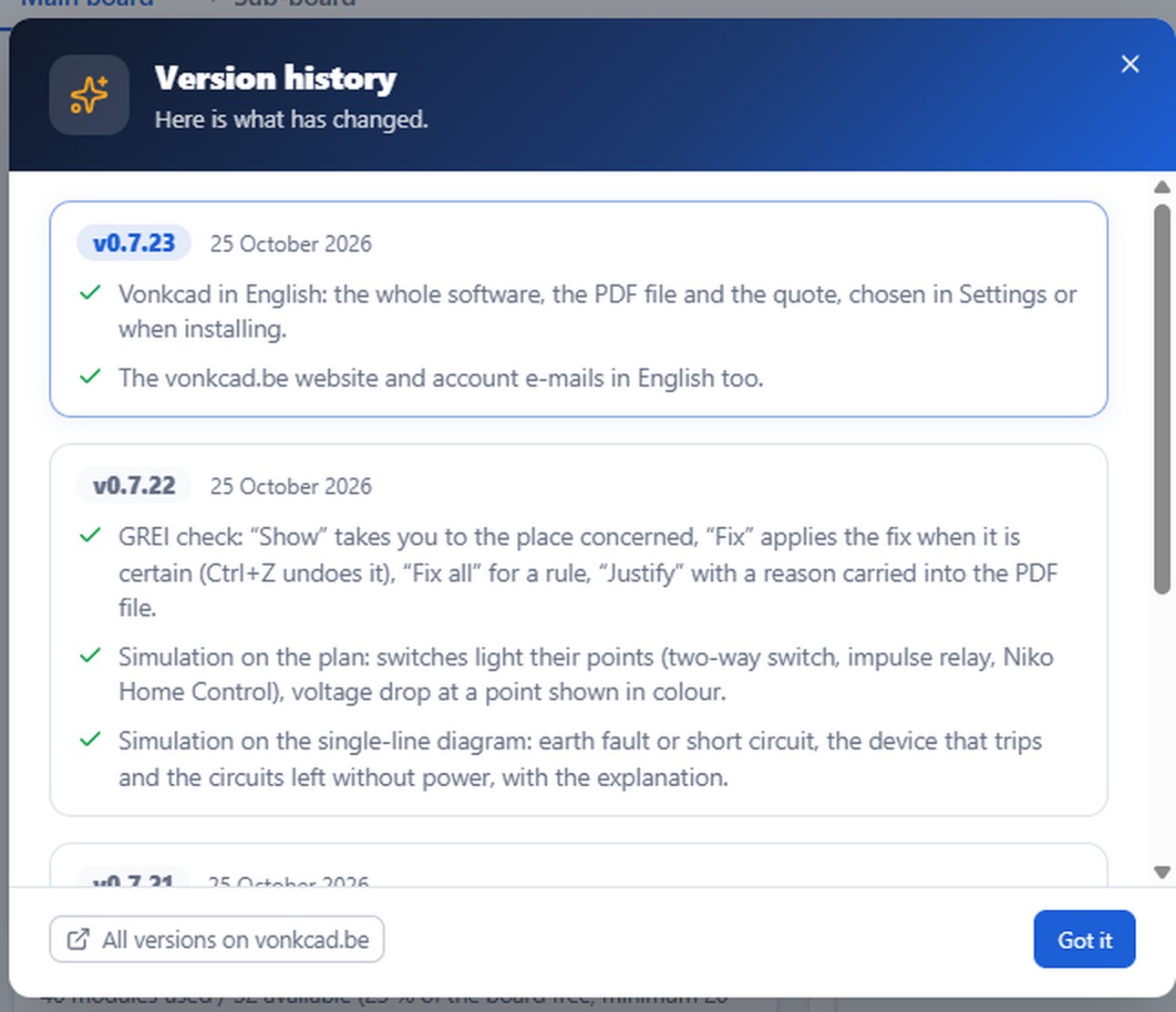
- When it is ready, the “Update: restart” button appears at the top: one click installs it. What’s new is shown at the next start-up.
- The version number, at the bottom right, opens the version history.
Change the language
Where
- Configuration
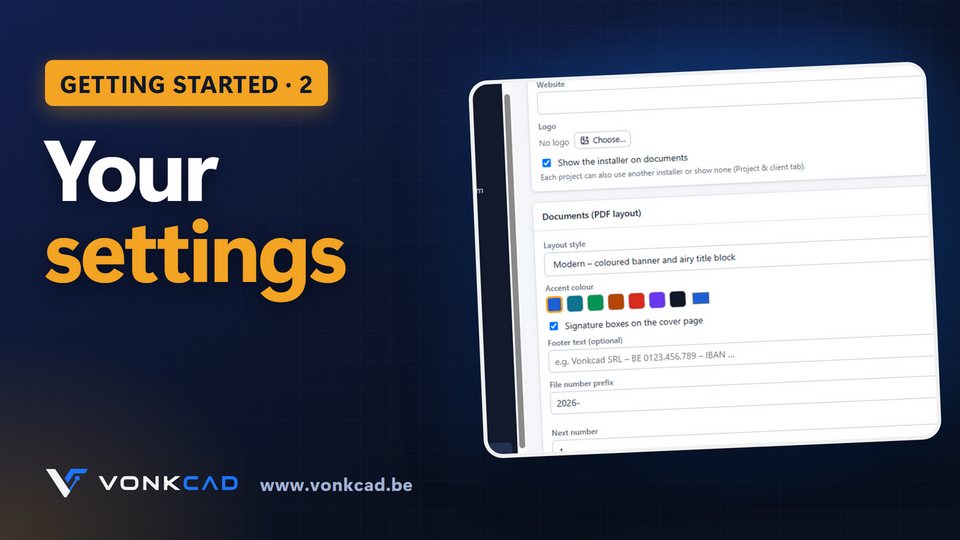
- Settings
- Interface language
- Choose English, French, Dutch or German.
- Your projects open in all three languages. The texts you typed are not translated.