Skip to Content

Getting started

The Vonkcad guide

The whole software, screen by screen: where to click, what to enter and what Vonkcad calculates for you. Every screen has its own video.

Install, sign in, update

Vonkcad installs on your Windows PC and is used with the account you created on vonkcad.be.

Download and install

Where

  1. vonkcad.be
  2. My area
  1. Sign in on vonkcad.be with the account that was given access.
  2. Download the installer and run it.
  3. Choose the software language: English, French, Dutch or German.

Sign in

Where

  1. First start-up
  2. Sign-in
  1. Enter the e-mail address and password of your vonkcad.be account.
  2. The computer is registered: you will not have to sign in at every start-up.

Good to know

Vonkcad works for 48 hours without Internet. During the last 24, it reminds you to reconnect.

Explore the example project

Where

  1. Home
  1. Click “Open the example project”: a complete house, with plans, board, single-line diagram and measurements.
  2. Browse the screens from the left-hand menu: each chapter of this guide follows one of them.
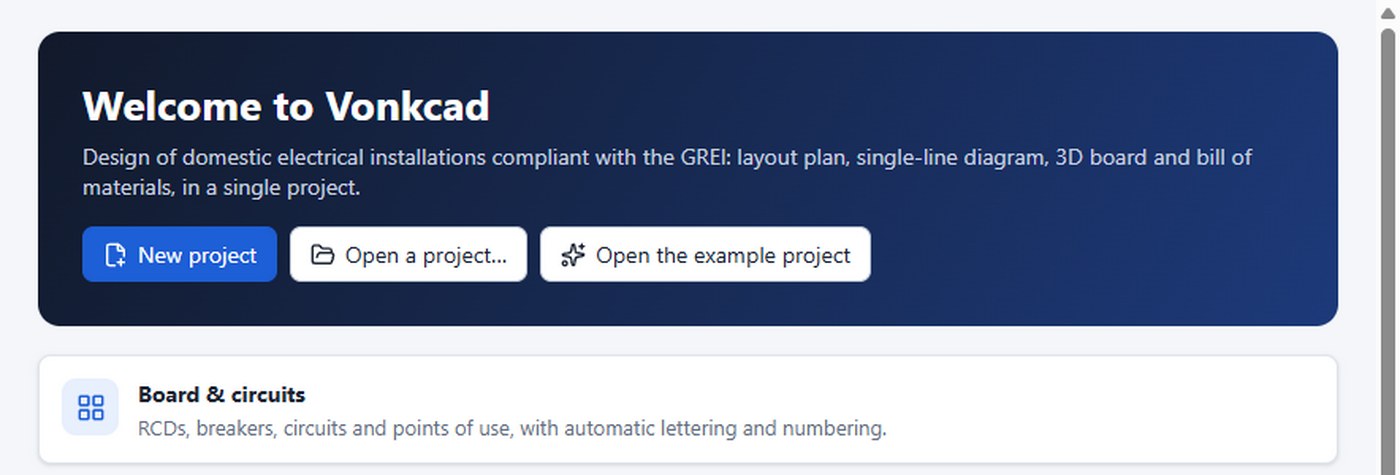
The Home screen: new project, open a file or the example project.

Update

Where

  1. Top bar
  2. Update: restart
  1. At start-up, Vonkcad downloads the new version in the background.
  2. When it is ready, the “Update: restart” button appears at the top: one click installs it. What’s new is shown at the next start-up.
  3. The version number, at the bottom right, opens the version history.
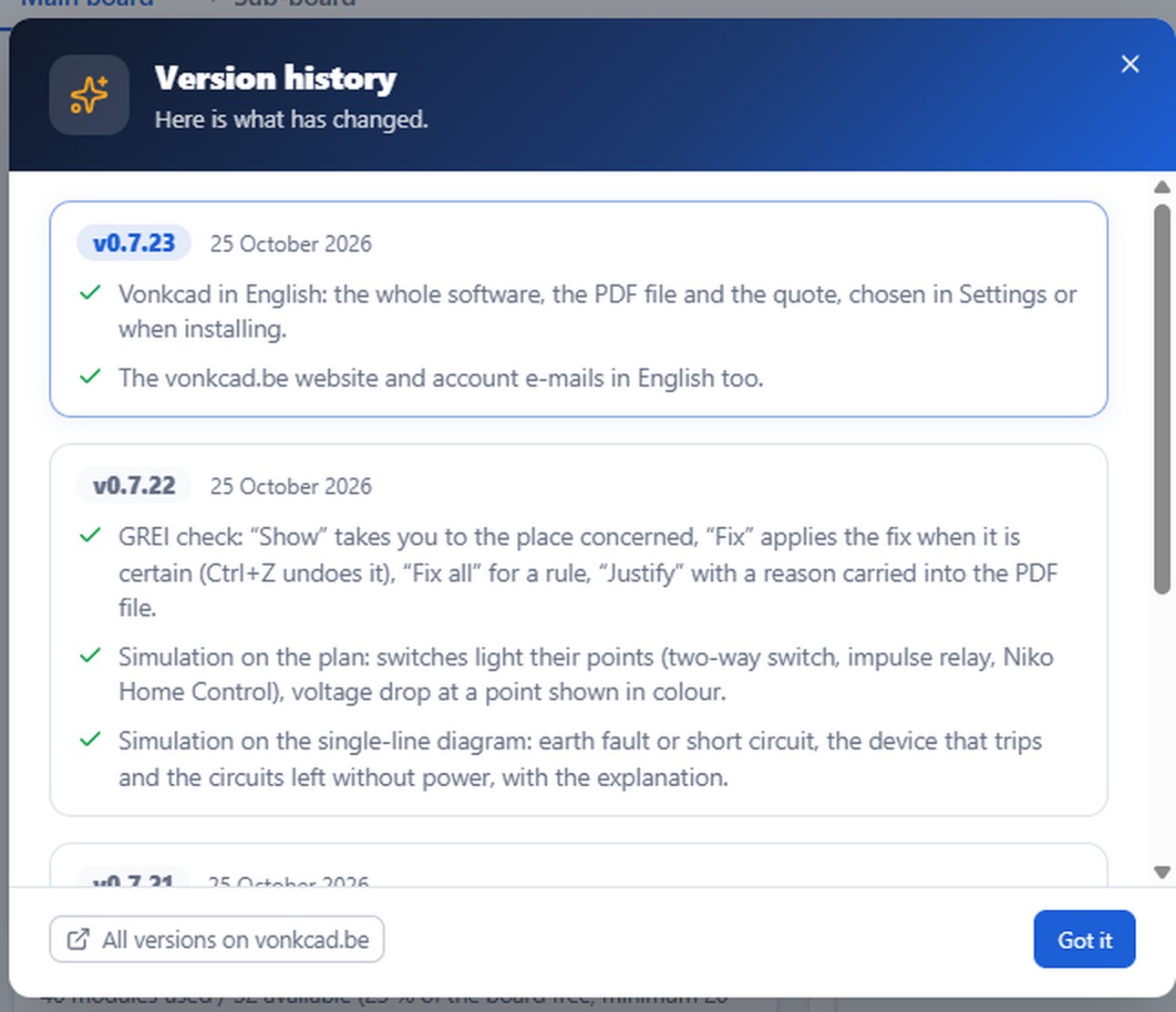
The version history, opened from the number at the bottom right.

Change the language

Where

  1. Configuration
  2. Settings
  3. Interface language
  1. Choose English, French, Dutch or German.
  2. Your projects open in all three languages. The texts you typed are not translated.
↑ Back to contents

Your profile and settings

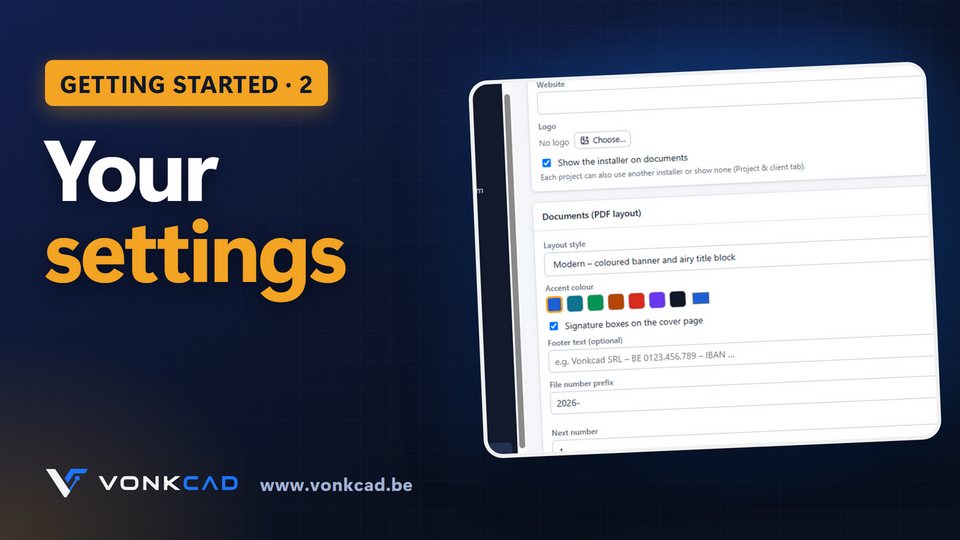
Settings apply to all projects on this computer: your company, the look of the documents and your default choices.

Your company

Where

  1. Configuration
  2. Settings
  3. Installer
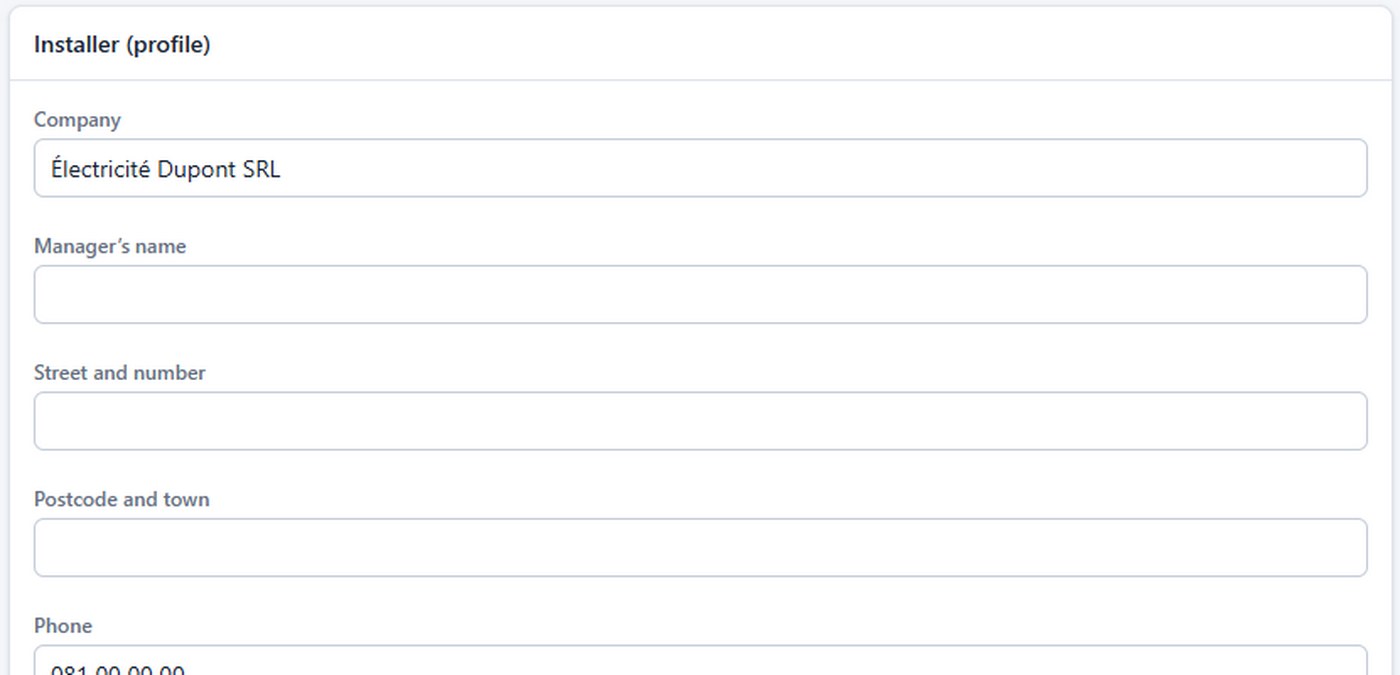
  1. Enter the company, the manager, the address, phone number, e-mail, VAT / CBE number and website.
  2. Add your logo (“Choose…”): it appears on the title blocks, the cover page and the quotes.
Your contact details, shown on every document.

The look of the documents

Where

  1. Settings
  2. Documents
  1. Choose the layout style: Modern, Technical or Clean.
  2. Set the accent colour, the signature boxes, the footer text and the file numbering.

Your default choices

Where

  1. Settings
  2. Board
  3. Wiring devices
  4. Cables
  1. The default brand for boards and the minimum spare (20 % recommended).
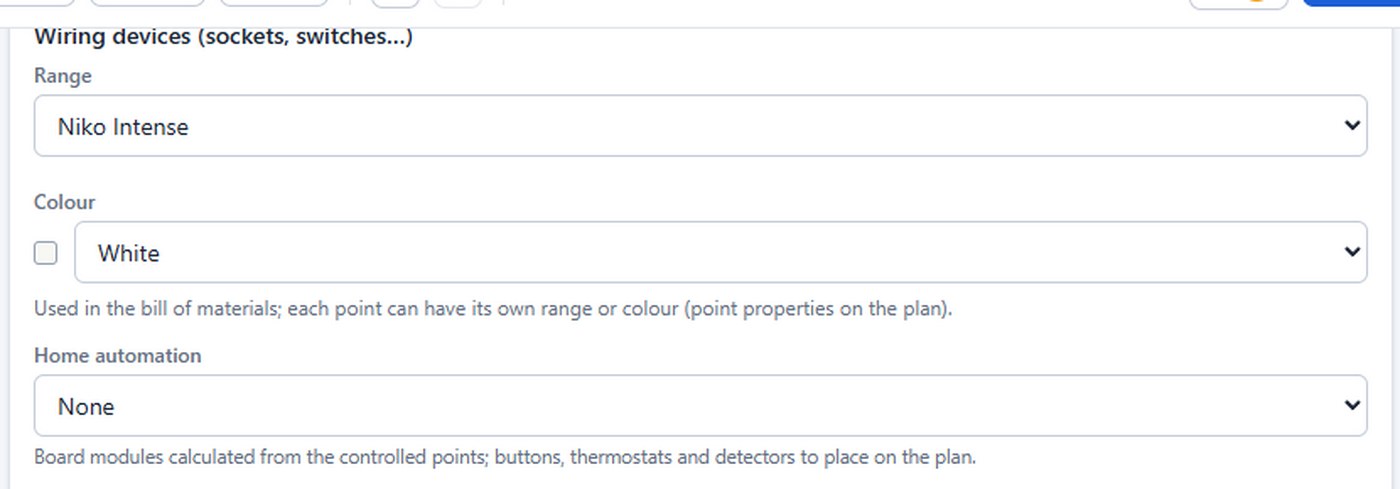
  2. The wiring device range and colour, Niko or Legrand, and any home automation.
  3. The cable, the installation method, the ceiling height and the margin on cable lengths.
Wiring device range and colour: the references in the bill of materials follow.
↑ Back to contents

Create a project and match it to the network

The network and the installation type set the rules Vonkcad then applies: poles, cables, EV chargers and GREI checks.

Create the project

Where

  1. Home
  2. New project
  1. Click “New project”: the “Project & client” screen opens.
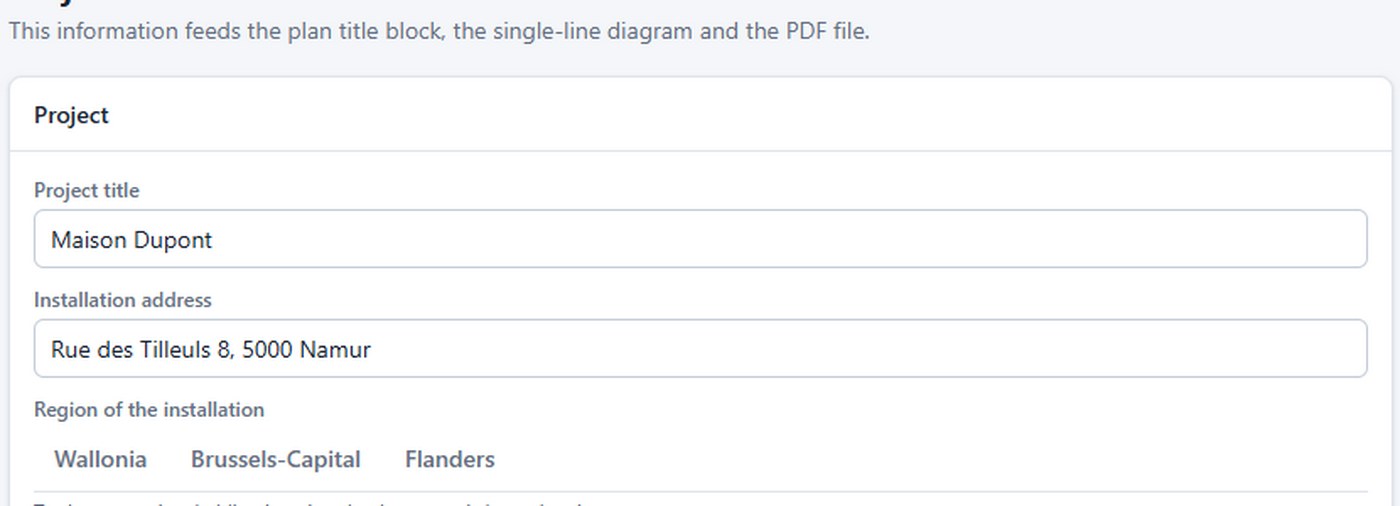
  2. Enter a title and the installation address, then choose the region: some obligations depend on it (smoke detectors…).
  3. Choose the type: new installation, existing installation (before 1981) or extension.
Title and address: they fill in the title blocks and the cover page.

Choose the network

Where

  1. Project & client
  2. Supply & earth electrode
  1. Choose the distribution system operator (DSO).
  2. Choose the network:
    • 2 × 230 V: two phases, 230 V network;
    • 3 × 230 V: three-phase without neutral;
    • 230 V + N: single-phase, 400 V network;
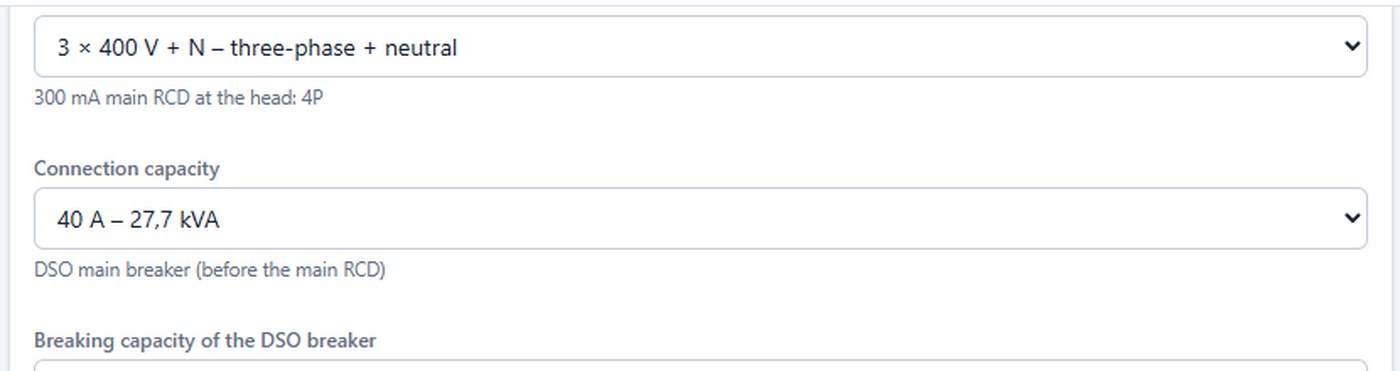
    • 3 × 400 V + N: three-phase with neutral.
  3. Then the connection capacity, in amperes and in kVA.
3 × 400 V + N network: 4P main RCD, power in kVA.

Good to know

You can change the network later: the project’s breakers, cables and EV chargers are recalculated.
Record the earth and the client

Where

  1. Project & client
  1. Enter the earth resistance and the electrode type, if you already know them.
  2. Fill in the EAN code and the meter number, then the client and the installer shown on the documents.
↑ Back to contents

Layout plans: walls, rooms and points

The plan locates every point of use. Each symbol is linked to its circuit: the single-line diagram, cables and materials follow from it.

Import or draw the plan

Where

  1. Design
  2. Layout plans
  1. “Import”: a PDF, an image, a DXF or a DWG, then calibrate the scale on a known dimension.
  2. Or draw: walls (M), rooms (P), doors and windows (O), dimensions (C), texts (T).
  3. Add one page per level (“+ Page”): ground floor, first floor…
The plan toolbar: walls, rooms, openings, dimensions, import, automatic placement.

Place the points

Where

  1. Layout plans
  2. Electrical
  3. Points to place
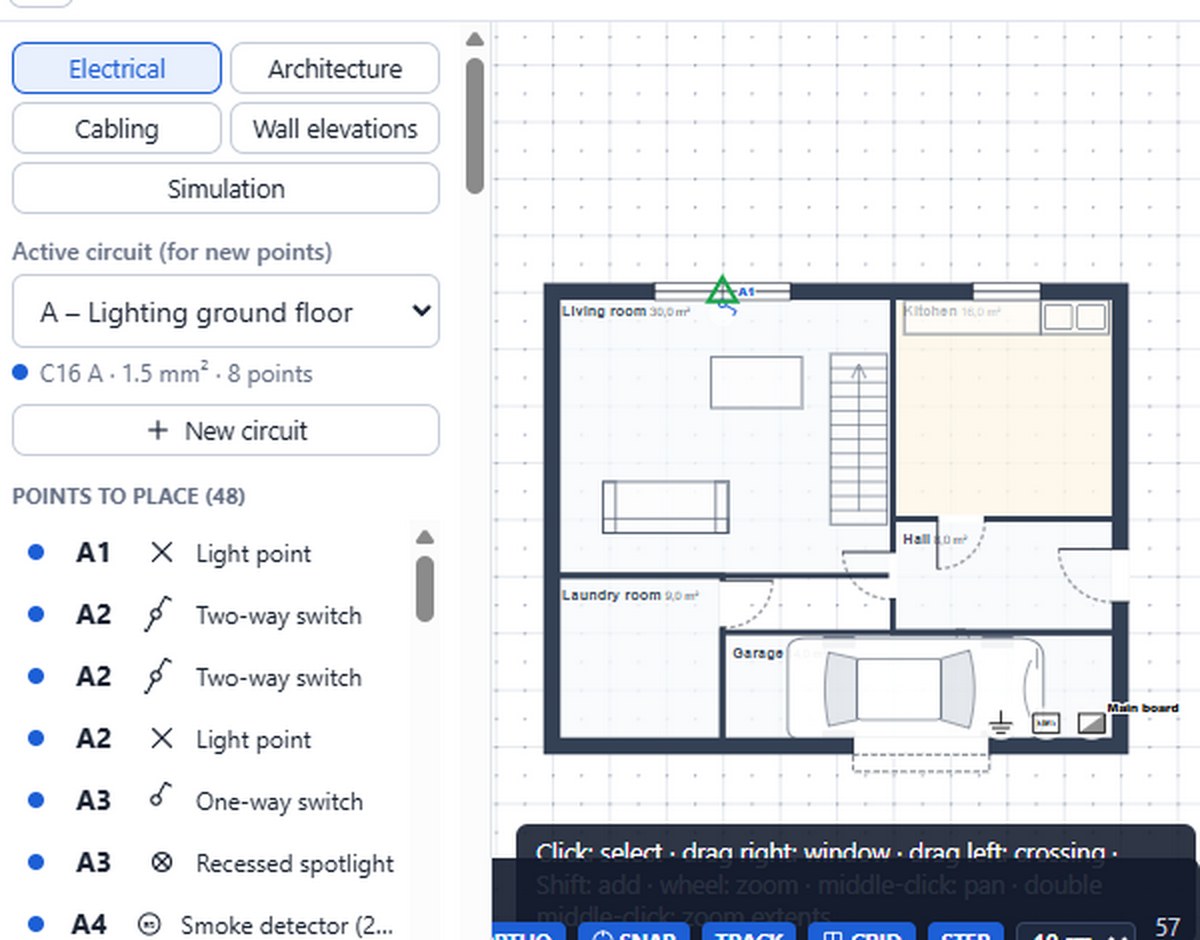
  1. Points created in the board wait in “Points to place”: click one, then the spot on the plan.
  2. Near a wall, the symbol snaps to it, facing the room, with its identifier (A1, B2…).
  3. To add a point, take it from the palette: it joins the active circuit.
The first point placed against the wall, the others still to be placed.

Automatic placement

Where

  1. Layout plans
  2. Auto place
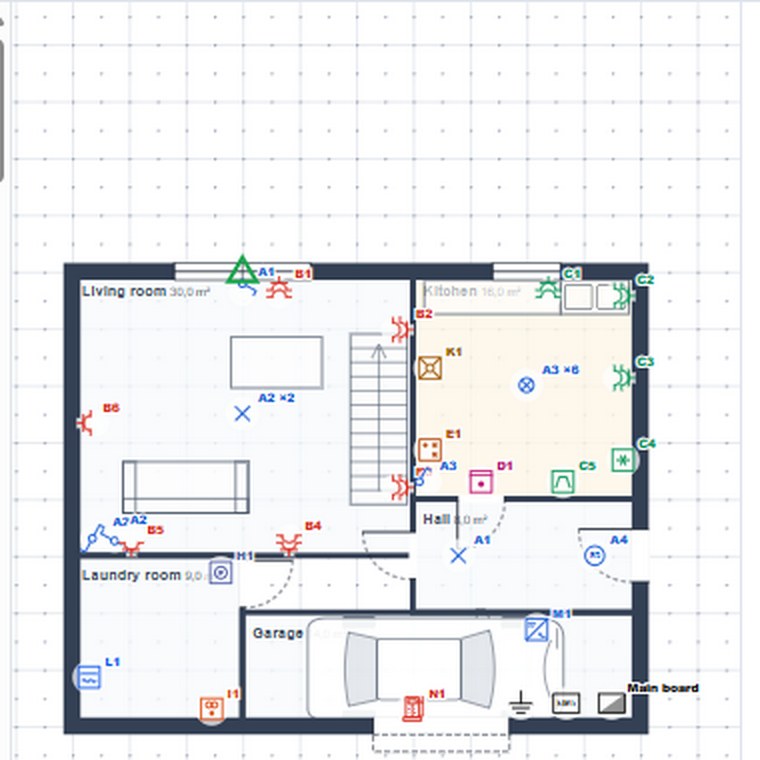
  1. Click “Auto place”: the remaining points are placed room by room, according to the room type.
  2. Then move whatever you like; duplicate rooms are flagged.
After “Auto place”: all the ground-floor points are placed.

Groups and vertical alignment

Where

  1. Layout plans
  2. select several points
  1. Select several points (Shift + click), then “Group under one cover plate”: one group, one N-gang cover plate.
  2. Or “Align vertically”: same spot on the wall, different heights, separate cover plates.
↑ Back to contents

Board and circuits

You describe the circuits; Vonkcad chooses ratings and cross-sections, creates the RCDs and suggests the enclosure. Everything stays editable.

Add circuits

Where

  1. Design
  2. Board & circuits
  3. top of the circuit list
  1. Choose the type from the drop-down list, for example “Socket circuit (20 A – 2.5 mm²)”.
    • sockets, lighting, mixed;
    • appliances: washing machine, oven, hob, water heater, heat pump…;
    • energy: photovoltaics, battery, EV charger (chapter 6).
  2. Click “+ Circuit”. The circuit takes the next letter (A, B, C…).
  3. Repeat for each circuit. When a row is full, the next one starts with its own 30 mA RCD.
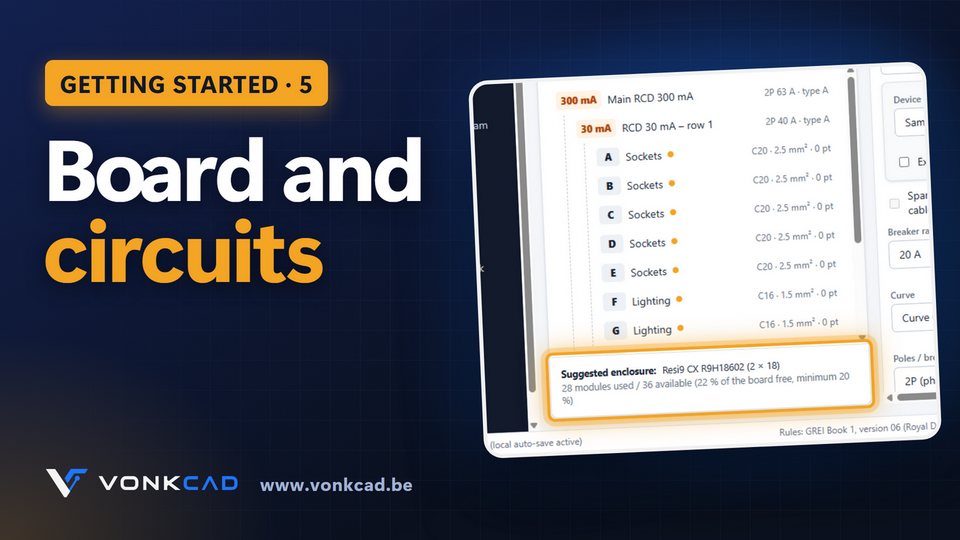
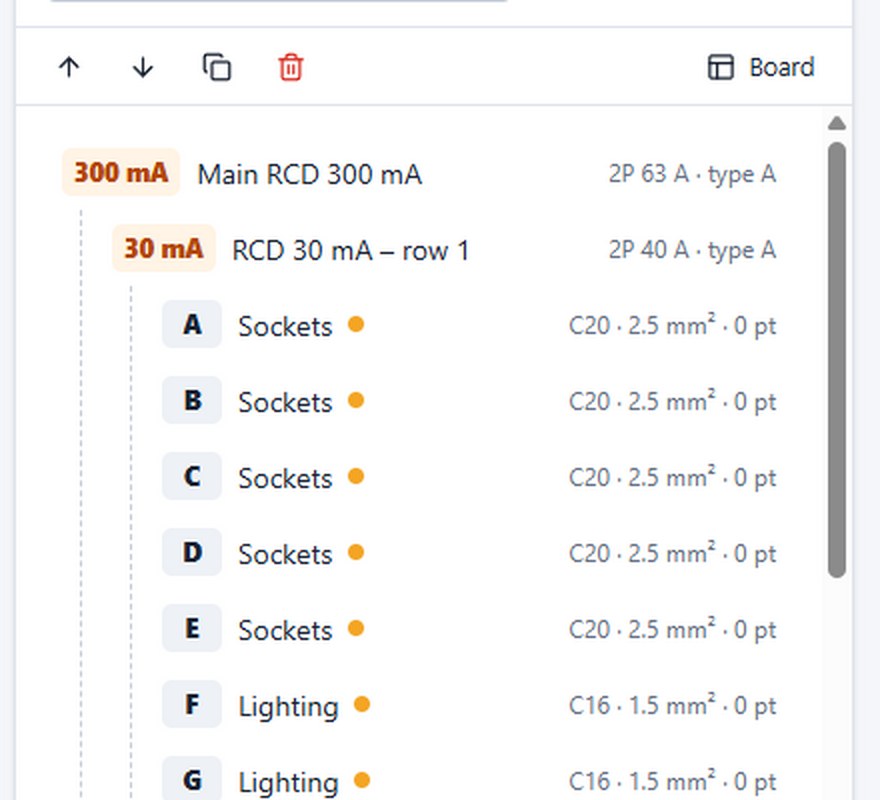
The circuits arranged under their 30 mA RCD, itself under the 300 mA main RCD.

Good to know

The 30 mA RCDs per row apply to new installations. For an existing installation, Vonkcad applies the derogations provided for (chapter 7).

Set up a circuit

Where

  1. Board & circuits
  2. click a circuit
  3. sheet on the right
  1. Click the circuit: its sheet opens on the right.
  2. If needed, change the name, rating, curve, poles, breaking capacity or brand.
  3. The GREI check verifies the rating / cross-section match straight away (chapter 13).
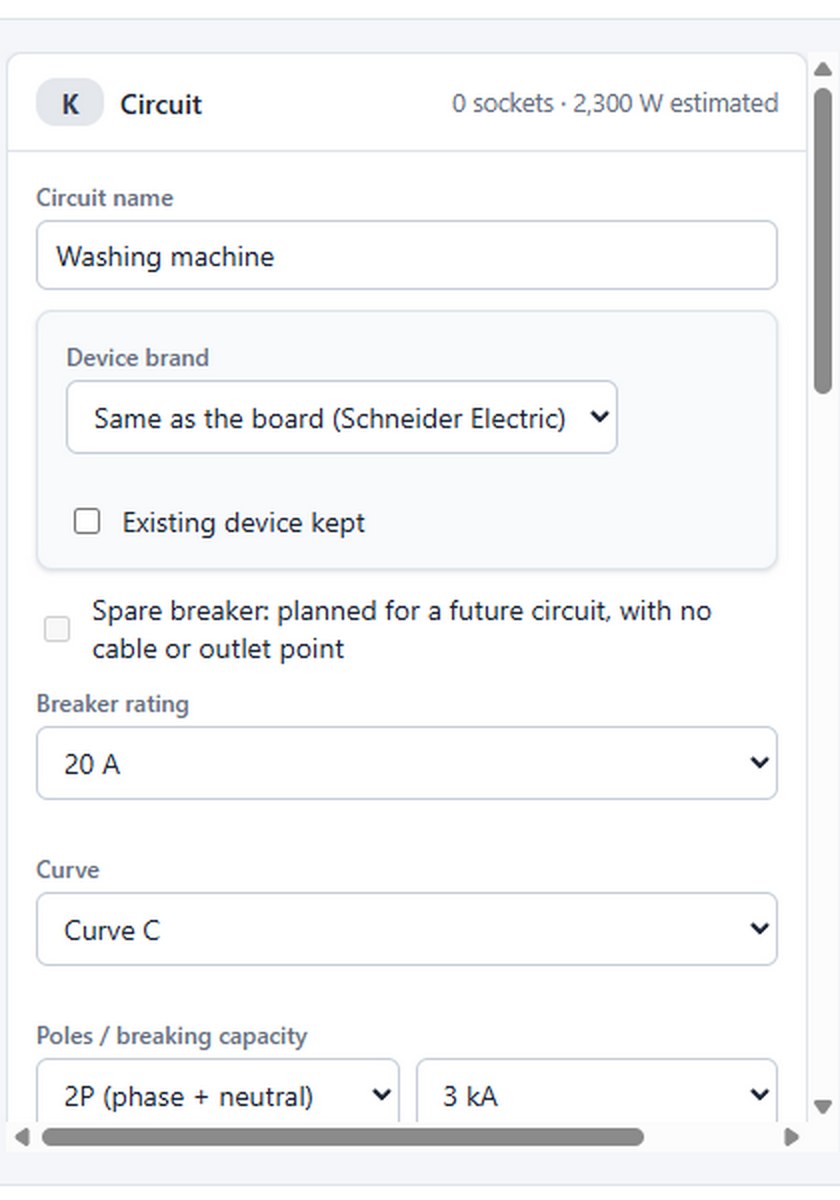
The “Washing machine” circuit sheet: 20 A, curve C, 2P, 3 kA.

Check the suggested enclosure

Where

  1. Board & circuits
  2. bottom of the circuit list
  1. Read the “Suggested enclosure” line: reference, number of rows and modules.
  2. Vonkcad keeps at least 20 % of the modules free; add a circuit and the enclosure grows if needed.
  3. A sub-board is added from the “+ Sub-board” tab, fed from the main board.
Suggested enclosure: 2 rows of 18 modules, 22 % free space.
↑ Back to contents

Photovoltaics, battery and EV charger

An EV charger is chosen by its current; its power, poles and cable depend on the project network.

Video coming soon

Add an EV charger

Where

  1. Board & circuits
  2. circuit type
  3. EV charger
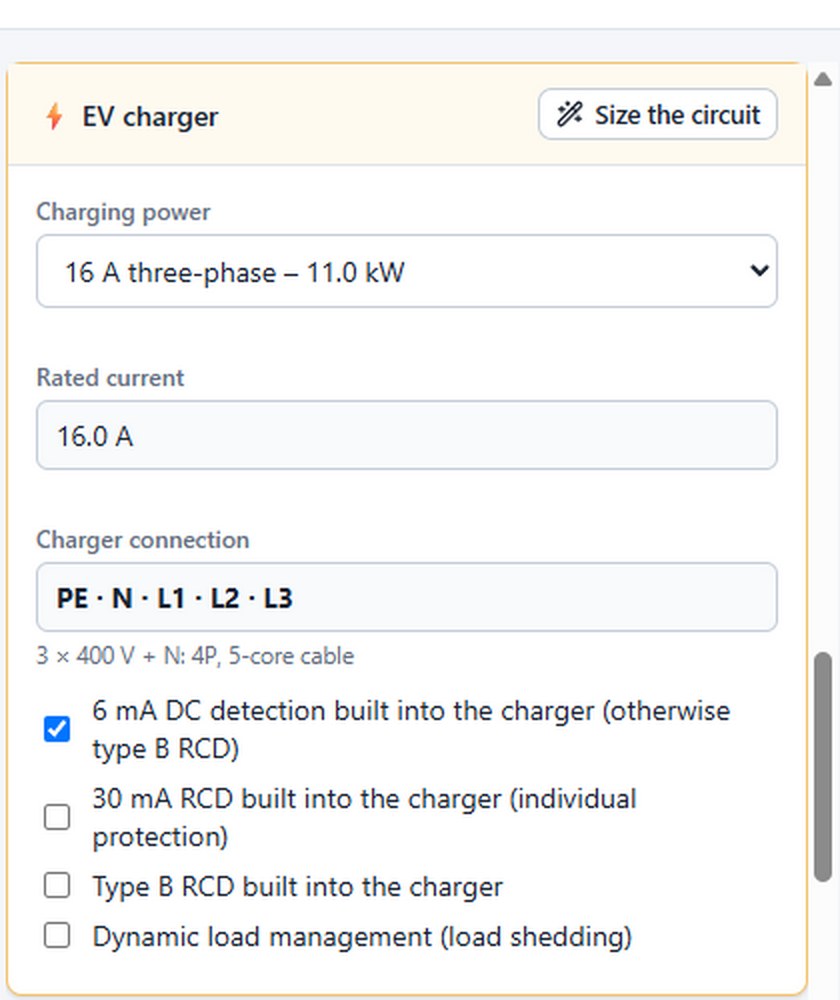
  1. Choose the charger: 16 A or 32 A, single-phase or three-phase. The menu shows the power on the project network.
  2. Click “+ Circuit”: the charger gets its own 30 mA RCD.
  3. Its sheet shows the connection to make.
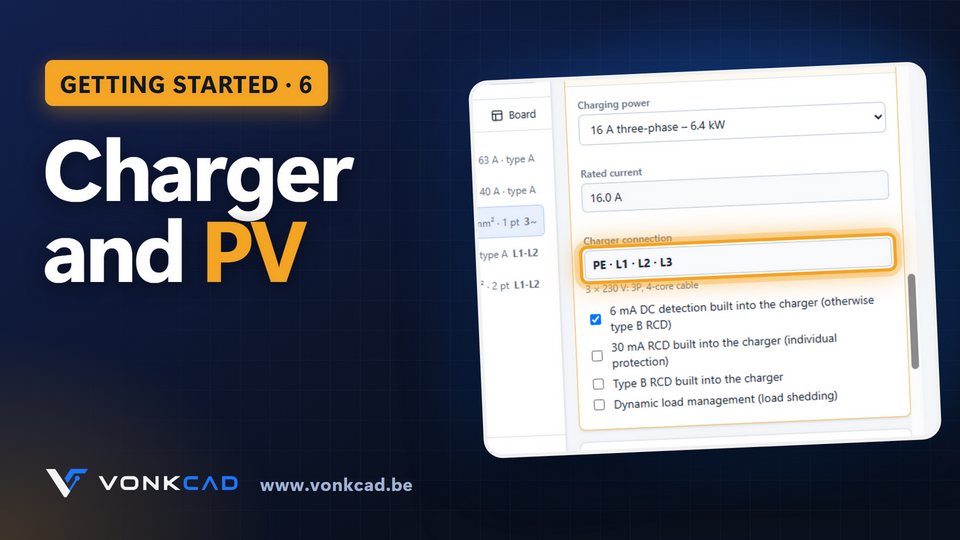
On 3 × 400 V + N: 11 kW, 4P breaker, 5-core cable, PE · N · L1 · L2 · L3.

Good to know

A 16 A three-phase charger gives 11 kW on 3 × 400 V + N, but 6.4 kW on 3 × 230 V. Changing the project network recalculates the chargers.

Add photovoltaics

Where

  1. Board & circuits
  2. circuit type
  3. Photovoltaics
  1. Choose “Photovoltaic (inverter + panels)”, then “+ Circuit”.
  2. Enter the inverter and panel power in the sheet; add the storage battery if needed.
  3. The check reminds you of the marking and signs required for an installation with two sources.
↑ Back to contents

Existing installation and board

For an installation from before 1981, Vonkcad keeps the devices in place, orders only the new items and applies the derogations provided for.

Declare the existing installation

Where

  1. Project & client
  2. Installation type
  1. Choose “Existing installation (before 1981)” or “Extension / major modification”.
  2. The GREI checks take it into account, for example for the 30 mA RCDs per row.

Keep the existing board

Where

  1. Board & circuits
  2. Board settings
  1. Enter the brand of the existing board.
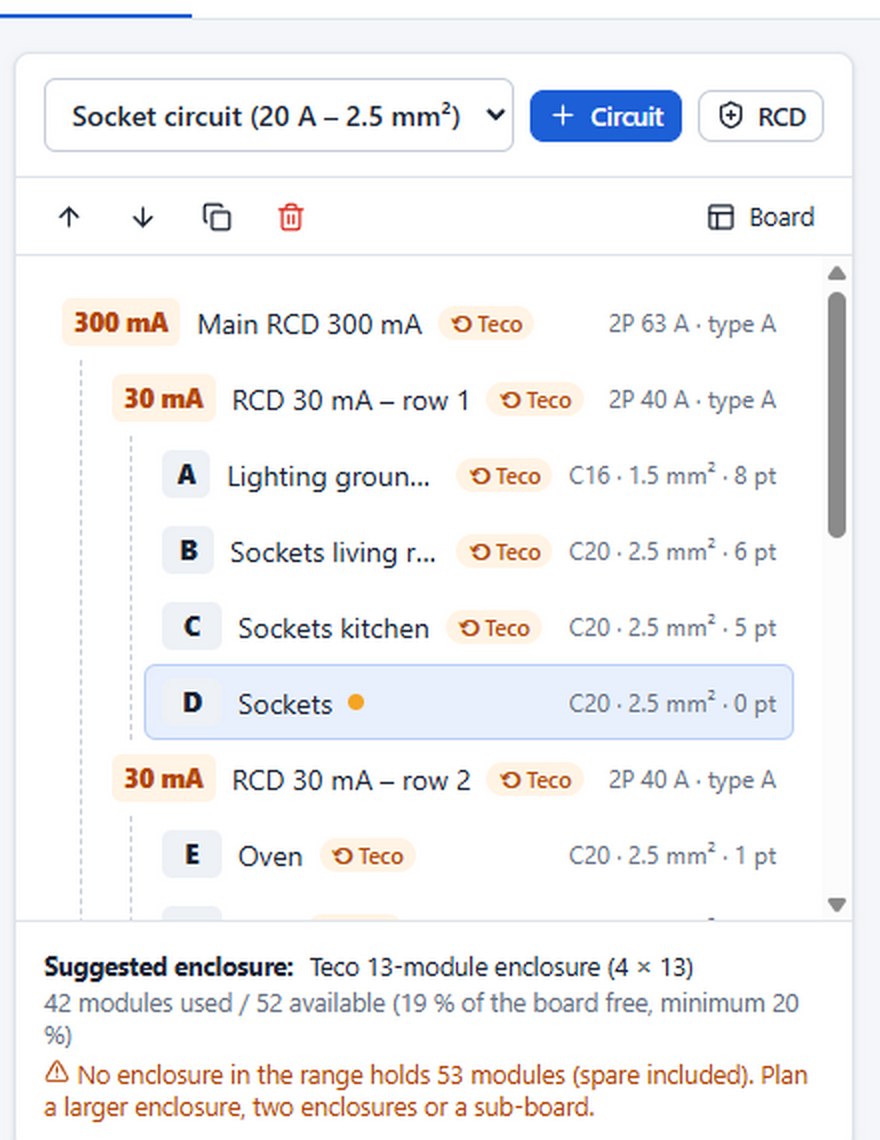
  2. Click “Mark all current devices as existing”: they are marked ⟲.
  3. Then add the new circuits: they take the brand of the new devices.
The existing devices marked ⟲, next to the new circuit D.

Order only what is new

Where

  1. Bill of materials
  1. Kept devices are listed “for reference”; only new items count in the quantities and the quote.
↑ Back to contents

Links and cabling

Vonkcad routes each circuit’s cable on the plan and measures it: the bill of materials and the voltage drop follow.

Video coming soon

Show the links

Where

  1. Layout plans
  2. “Links” button
  1. Circuit links are hidden when the plan opens: the “Links” button shows them.
  2. Solid line along the walls, dashes through the ceiling, dots in the floor.

Route and measure the cables

Where

  1. Layout plans
  2. “Cabling” tab
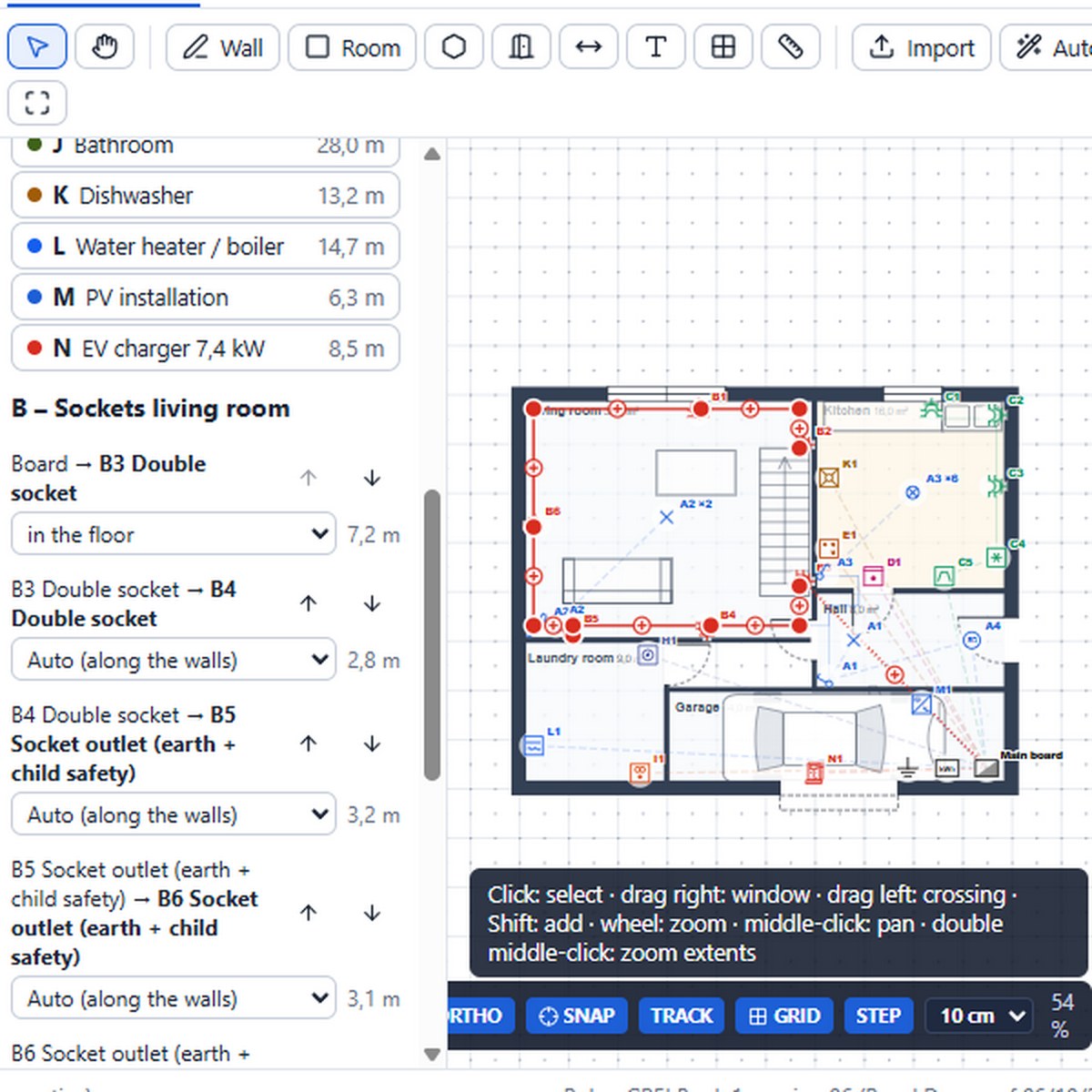
  1. Each circuit is listed with its cable length. Click one: its route turns into a thick line.
  2. For each run, choose the path: along the walls, through the ceiling or in the floor.
  3. Drag a bend on the plan (“+” to add one, double-click to remove it) and change the routing order if needed.
The “Sockets living room” circuit: its route and the detail of its runs.

Good to know

The take-off counts the rises and drops according to the heights, the connection inside the board and the project margin. A length forced in the circuit sheet takes priority.

↑ Back to contents

Wall elevations and installation drawings

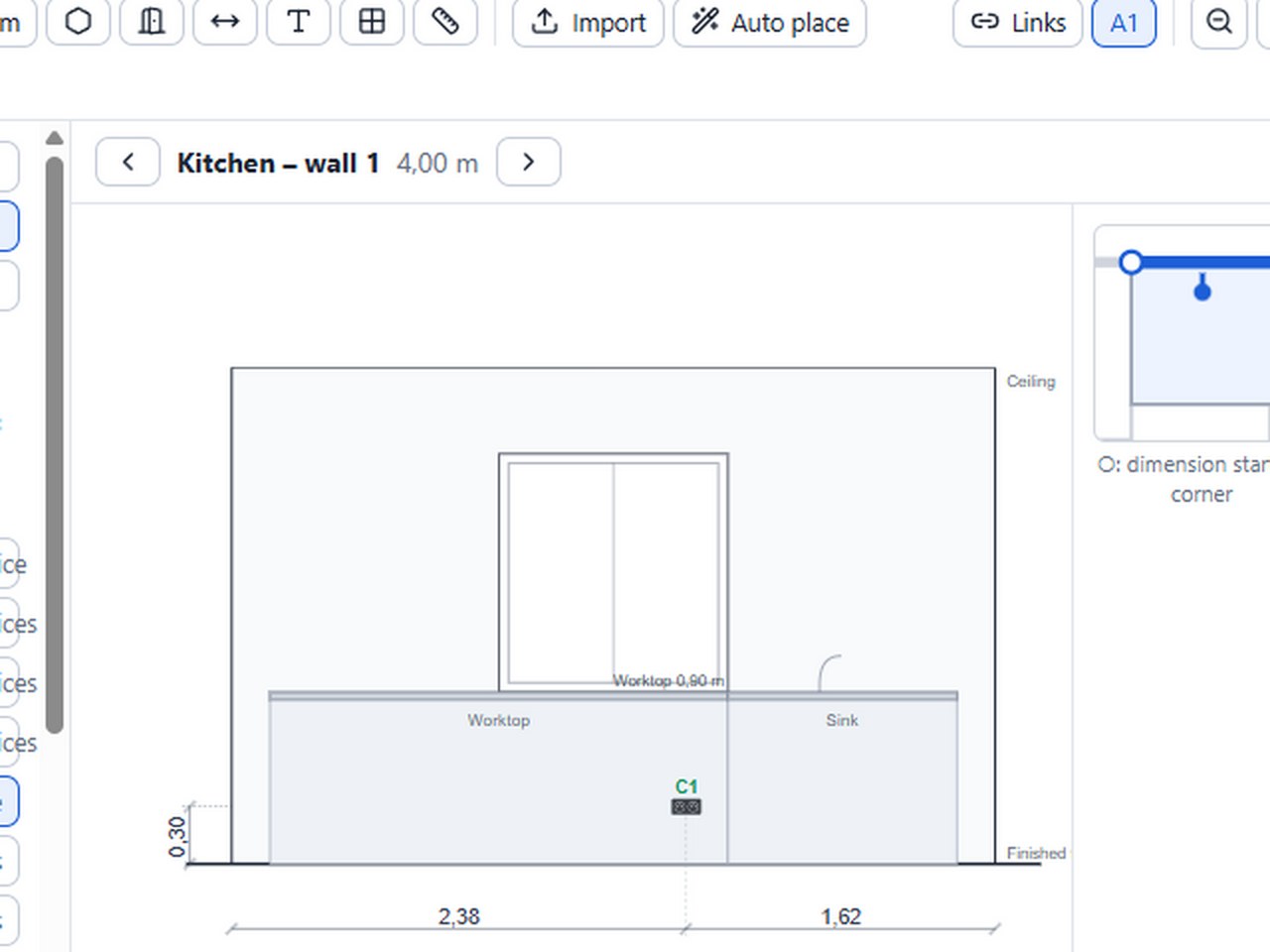
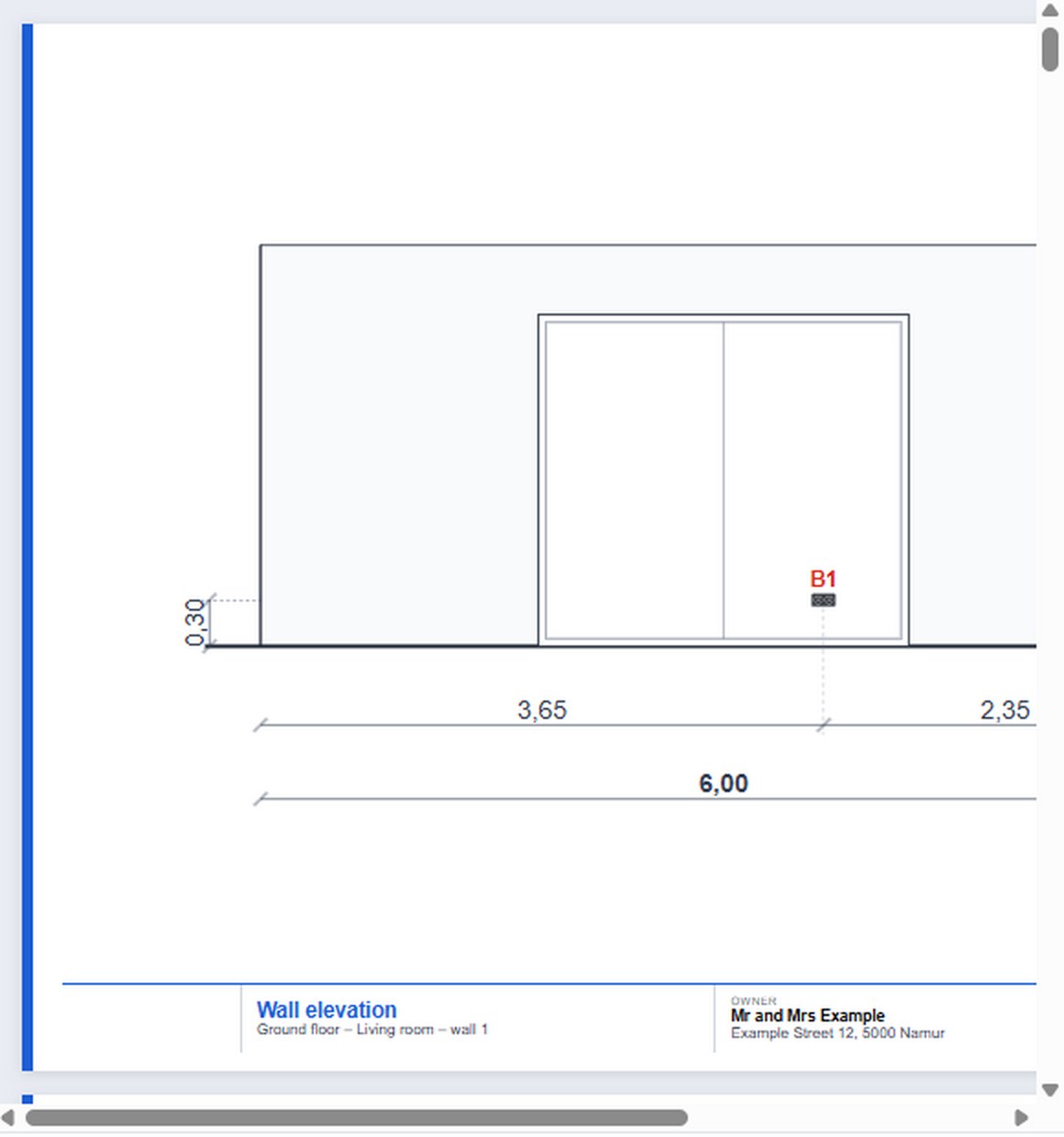
Every wall carrying wiring devices is drawn as seen from the room, cover plates to scale, dimensions included.

View a wall

Where

  1. Layout plans
  2. “Wall elevations” tab
  1. Choose a wall from the list, room by room.
  2. Cover plates in the chosen range and colour, groups, vertical alignments, doors, windows and furniture against the wall.
A kitchen wall: worktop at 0.90 m, height and chain dimensions.

Set heights and positions

Where

  1. Wall elevations
  2. click a device
  1. Drag the device up or down for its height, sideways for its position (5 cm steps, Alt: 1 cm).
  2. Or type the height and the dimension in the panel. The layout plan follows.

Output the installation drawings

Where

  1. PDF file
  2. Installation drawings
  1. Wall elevations are printed separately, as “Installation drawings” (chapter 20).
↑ Back to contents

Single-line diagram

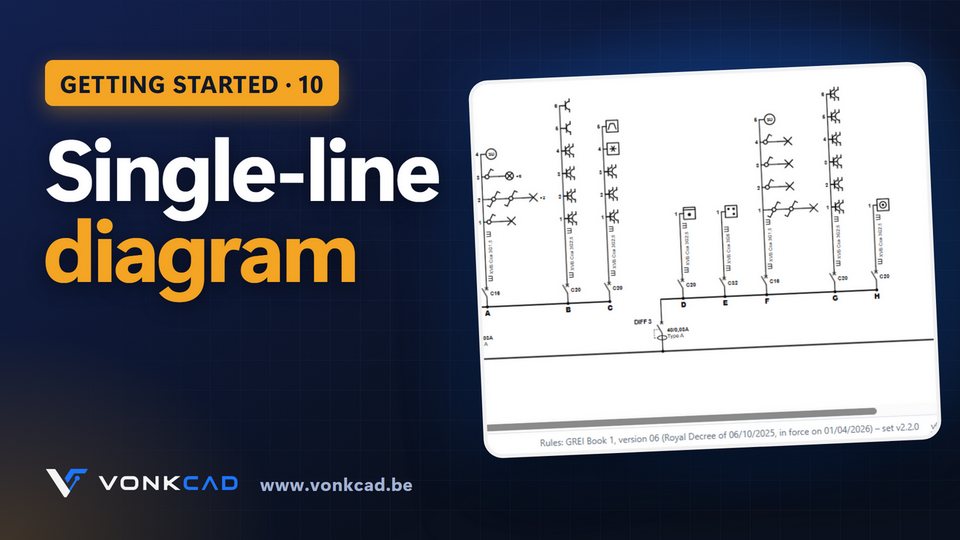
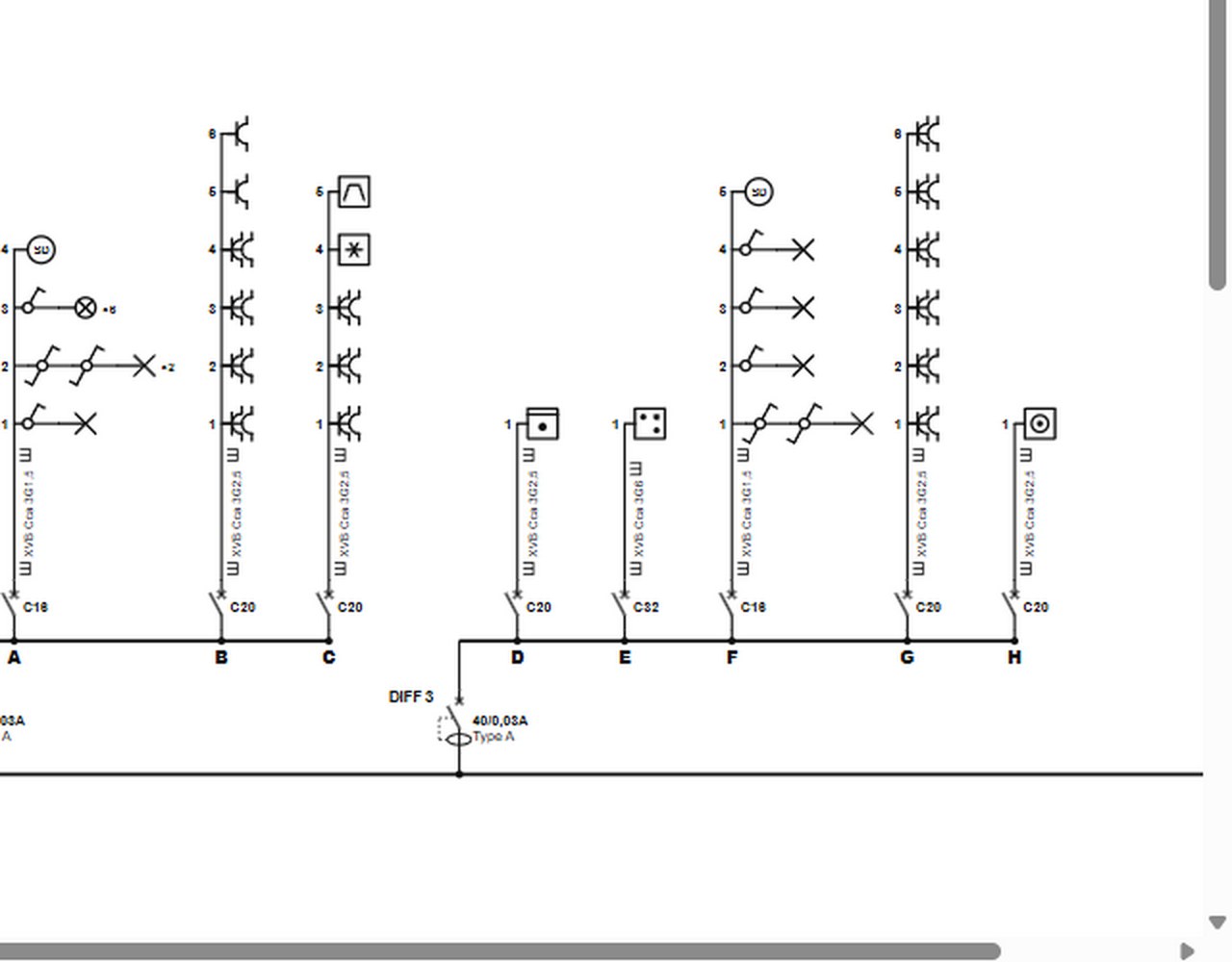
You don’t draw the single-line diagram: it is generated from the board, in Belgian format, with legend, title block and GREI notes.

Video coming soon

Read the single-line diagram

Where

  1. Design
  2. Single-line diagram
  1. Each outgoing circuit shows the RCD, the breaker, the cable, its cross-section, its installation method and the points supplied.
  2. Zoom with the “−” and “+” buttons, or with the mouse wheel.
Each outgoing circuit: points supplied, cable, cross-section and breaker.

Title block and printing

Where

  1. Single-line diagram
  2. bottom of each sheet
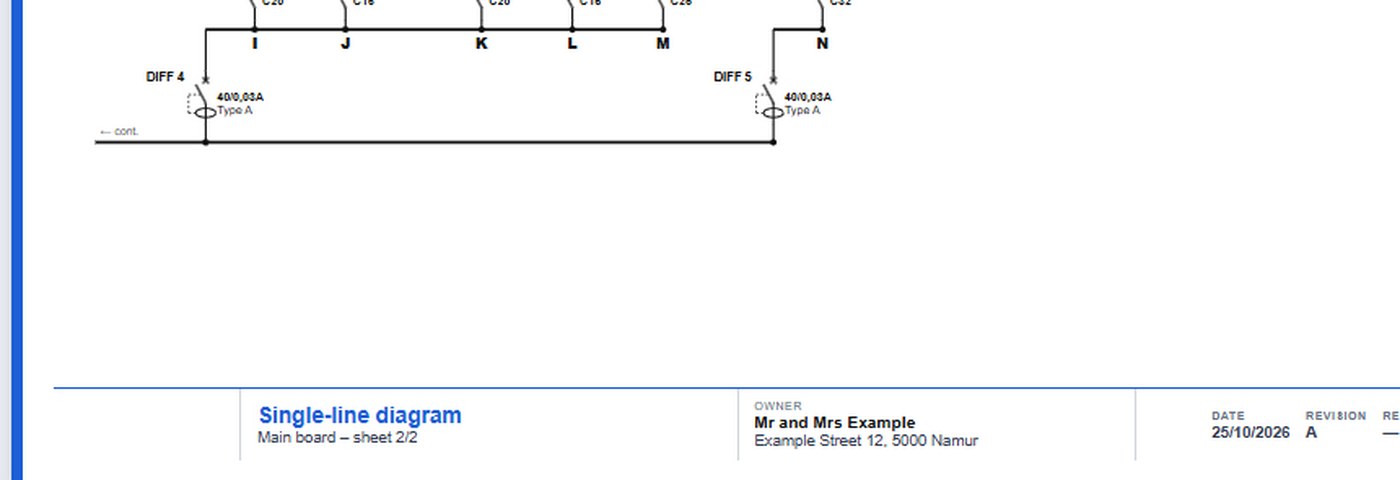
  1. The title block shows the client, the address, the installer and the sheet number.
  2. “Print / PDF” outputs the single-line diagram on its own; it is also part of the PDF file (chapter 19).
The title block, filled in from “Project & client”.

Good to know

The layout plan carries the same identifiers (A1, B2…): any change is carried over to both.

↑ Back to contents

3D board, busbar combs and labels

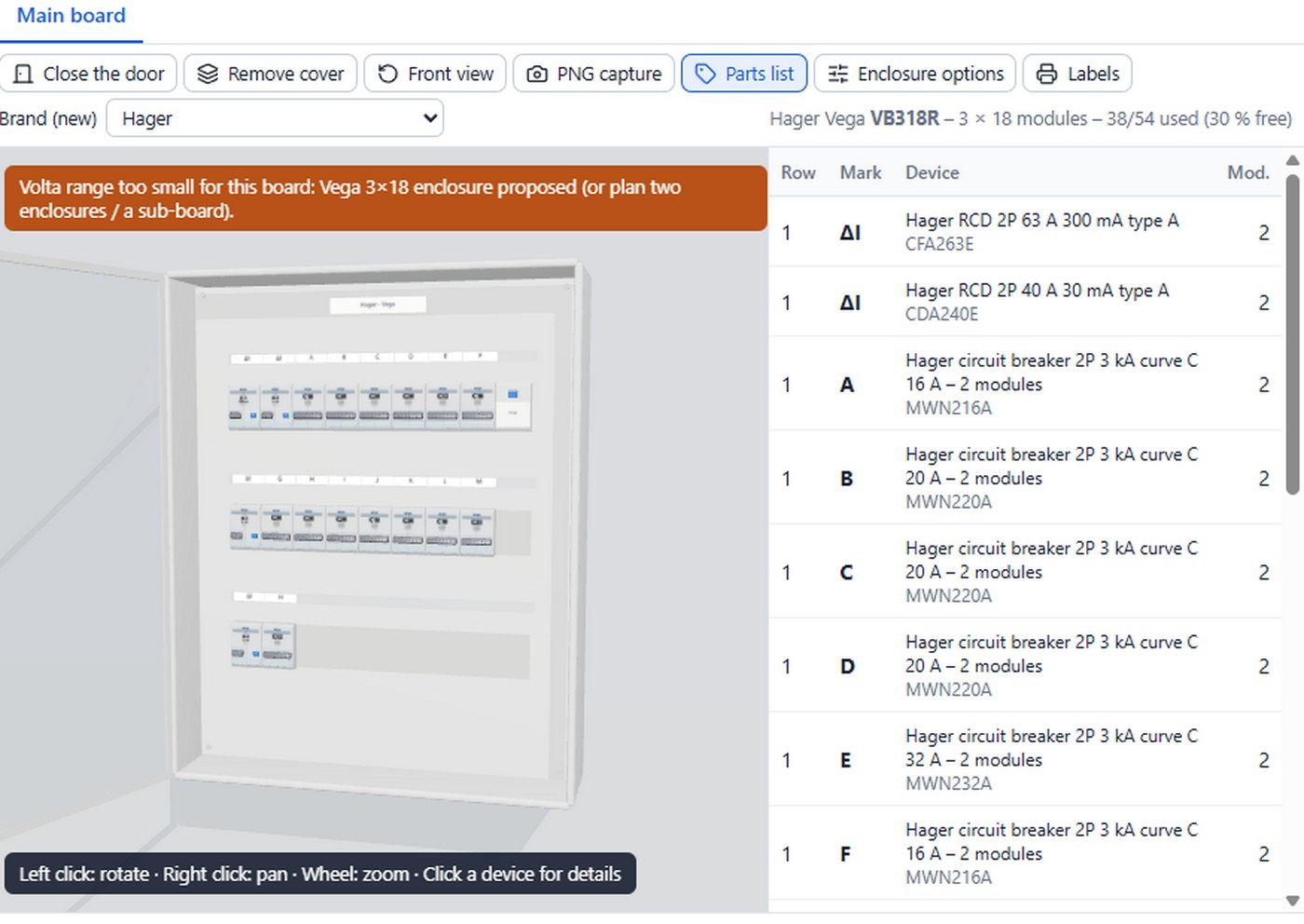
The suggested enclosure, in 3D, with the manufacturers’ real models: parts list, busbar combs and labels.

Video coming soon

View the enclosure

Where

  1. Design
  2. 3D board
  1. Rotate with the left button, pan with the right button, zoom with the mouse wheel. Click a device for its details.
  2. Change the brand: enclosure and devices follow. The parts list gives every reference.
  3. “Close the door”, “Remove cover”, “Front view” and “PNG capture” for your presentations.
The Hager enclosure and its parts list.

Busbar combs and jumpers

Where

  1. 3D board
  2. Enclosure options
  1. Tick “Draw and price the busbar combs, cables and jumpers”.
  2. Busbar combs are chosen by row and brand, with their references; you can connect with cables instead and choose the side.

Labels

Where

  1. 3D board
  2. Labels
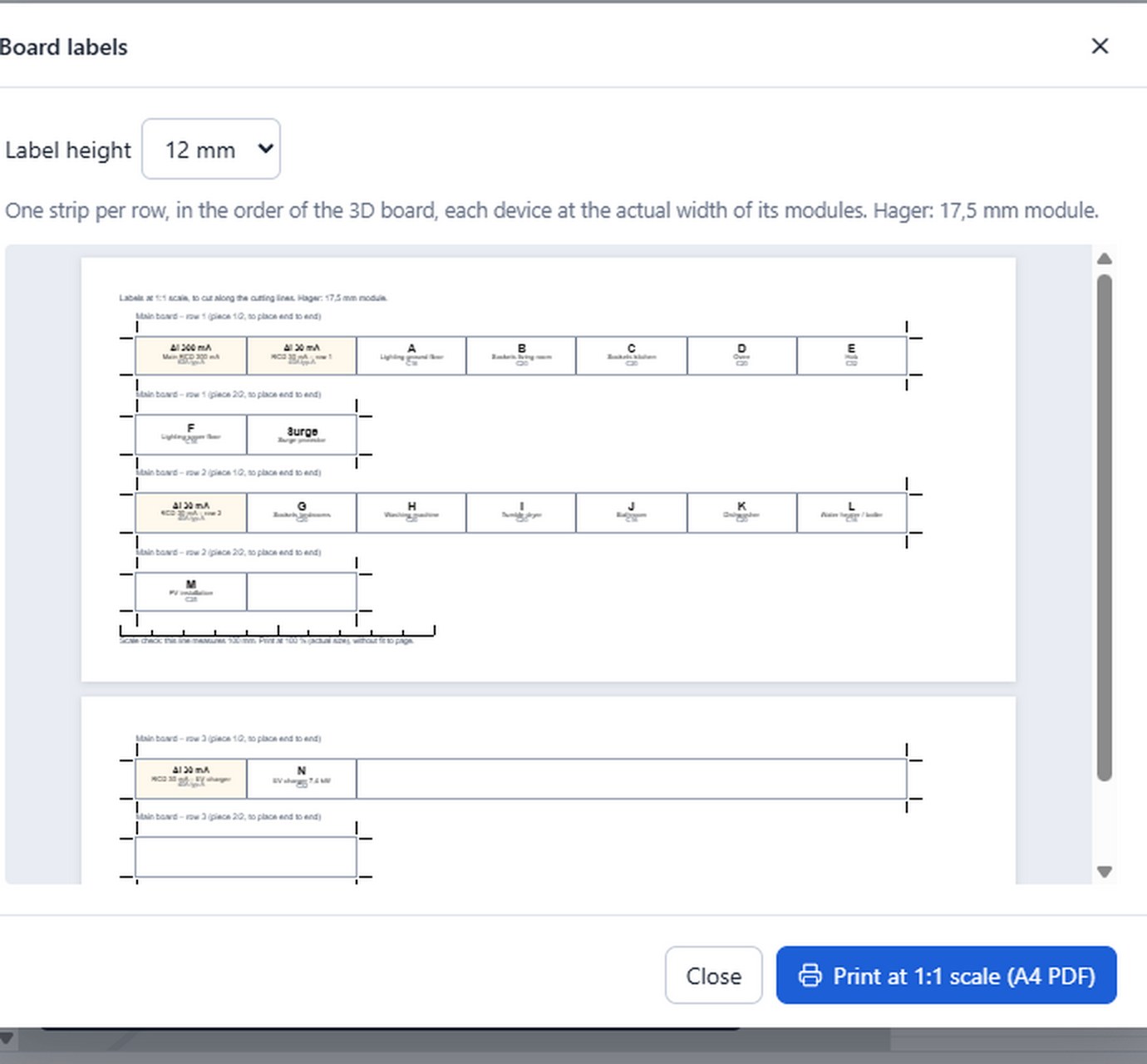
  1. One strip per row, at 1:1 scale, with the circuit identifiers and names. Print and cut out.
The board labels, ready to print at 1:1 scale.
↑ Back to contents

Niko Home Control II home automation

Controlled points on the plan are switched by modules in the board: Vonkcad counts them and carries them through everywhere.

Enable home automation

Where

  1. Configuration
  2. Settings
  3. Home automation
  1. Choose “Niko Home Control II (bus)”: the controller’s breaker (C6, 2P) is added to the board.

Control points

Where

  1. Layout plans
  2. click a point
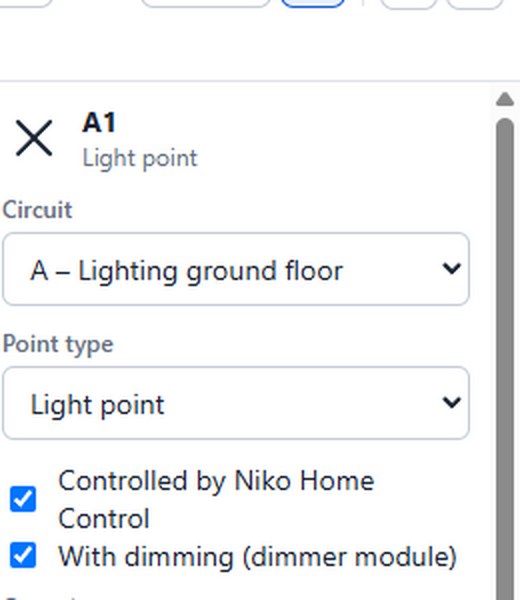
  1. Tick “Controlled by Niko Home Control”, with dimming if needed.
  2. The Niko buttons are in the plan palette.
A light point controlled by Niko Home Control.

Modules, single-line diagram and materials

Where

  1. 3D board
  2. Single-line diagram
  3. Bill of materials
  1. Switching, dimming and shutter modules are calculated in the board.
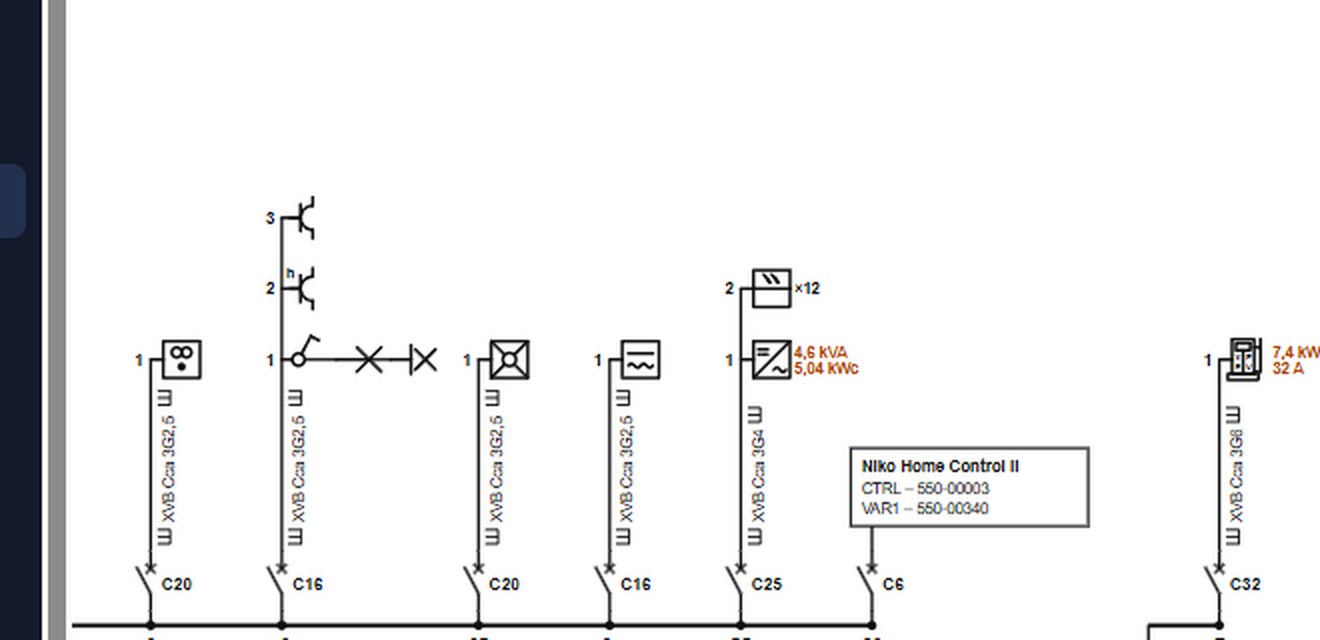
  2. On the single-line diagram, each controlled point shows the output of its module (COM1.4…).
  3. The bill of materials includes the Niko references and the bus cable estimated from the plan.
The Niko Home Control II frame on the single-line diagram: controller and dimming module.
↑ Back to contents

GREI check

The check runs continuously while you design, with the GREI article (Book 1, version 06) and a suggested fix.

Video coming soon

Read the remarks

Where

  1. Check & outputs
  2. GREI check
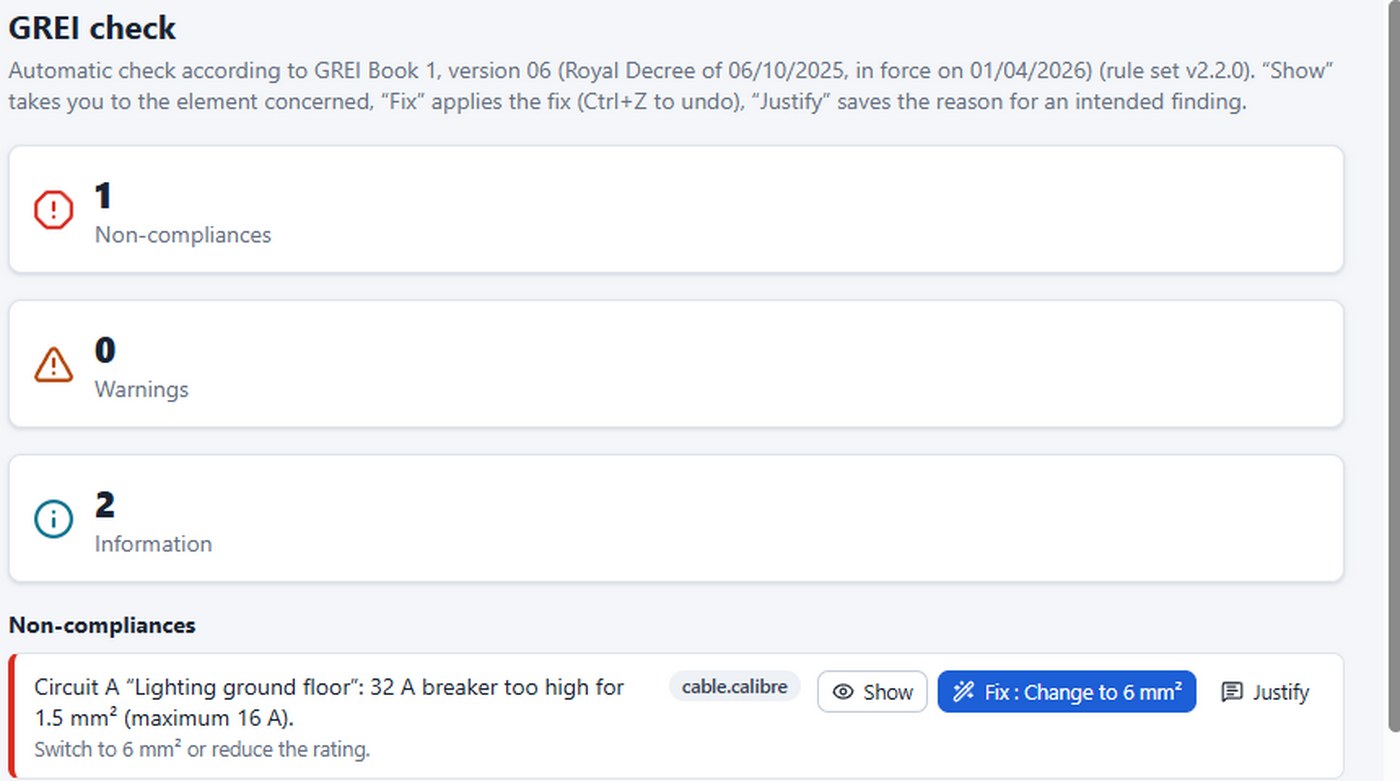
  1. The badge at the top right counts the points to review; one click opens the check.
  2. Remarks are sorted into non-compliances, warnings and information.
A non-compliance: the cause, the suggested fix and its rule.

Fix

Where

  1. GREI check
  2. buttons of a finding
  1. “Show” takes you to the circuit or point concerned.
  2. “Fix” applies the proposed solution (Ctrl+Z to undo); “Fix all” applies it to every finding of the same rule.
  3. “Justify” keeps an intended finding with its reason, shown in the PDF file.

Good to know

The check helps you prepare for the inspection. Only the approved inspection body certifies that the installation complies.

↑ Back to contents

Site: measurements and checklist

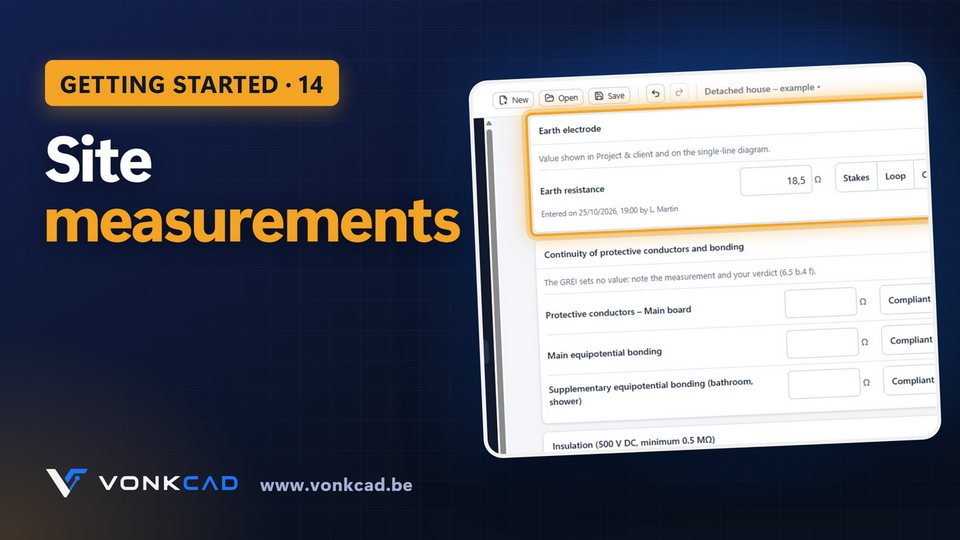
The “Site” screen replaces the paper form: measurements entered on site, on a laptop or tablet, dated with the operator.

Video coming soon

Enter the measurements

Where

  1. Check & outputs
  2. Site
  3. Measurements
  1. Enter the measuring instrument, its serial number and the operator.
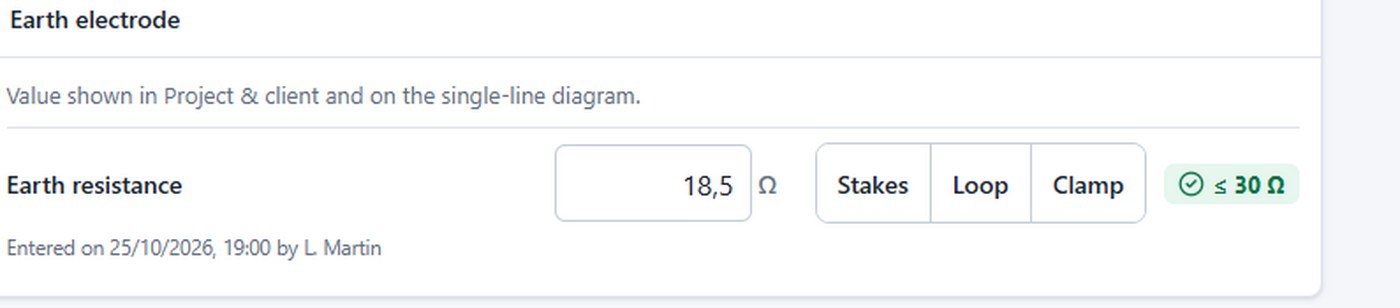
  2. Enter the earth resistance, the continuity of the protective conductors and equipotential bonding, then the insulation.
  3. Test each RCD: tripping current and time, test button.
The earth resistance, checked as soon as it is entered.

Tick off the checklist

Where

  1. Site
  2. Checklist
  1. The checklist is generated from the project: documents, earth, protection devices, boards, regional obligations.
  2. Tick the points checked on site; each ticked point is dated.
↑ Back to contents

Bringing an existing installation into compliance

After a negative report or before a sale, Vonkcad organises the clearing of the infringements and prepares the report for the new inspection.

The context and the deadline

Where

  1. Check & outputs
  2. Compliance work
  1. Choose the context: negative report received, sale or pre-inspection.
  2. Enter the inspection body and the report date: Vonkcad counts the days left (one year after a negative report, 18 months after a sale).

Clear the infringements

Where

  1. Compliance work
  2. Report infringements
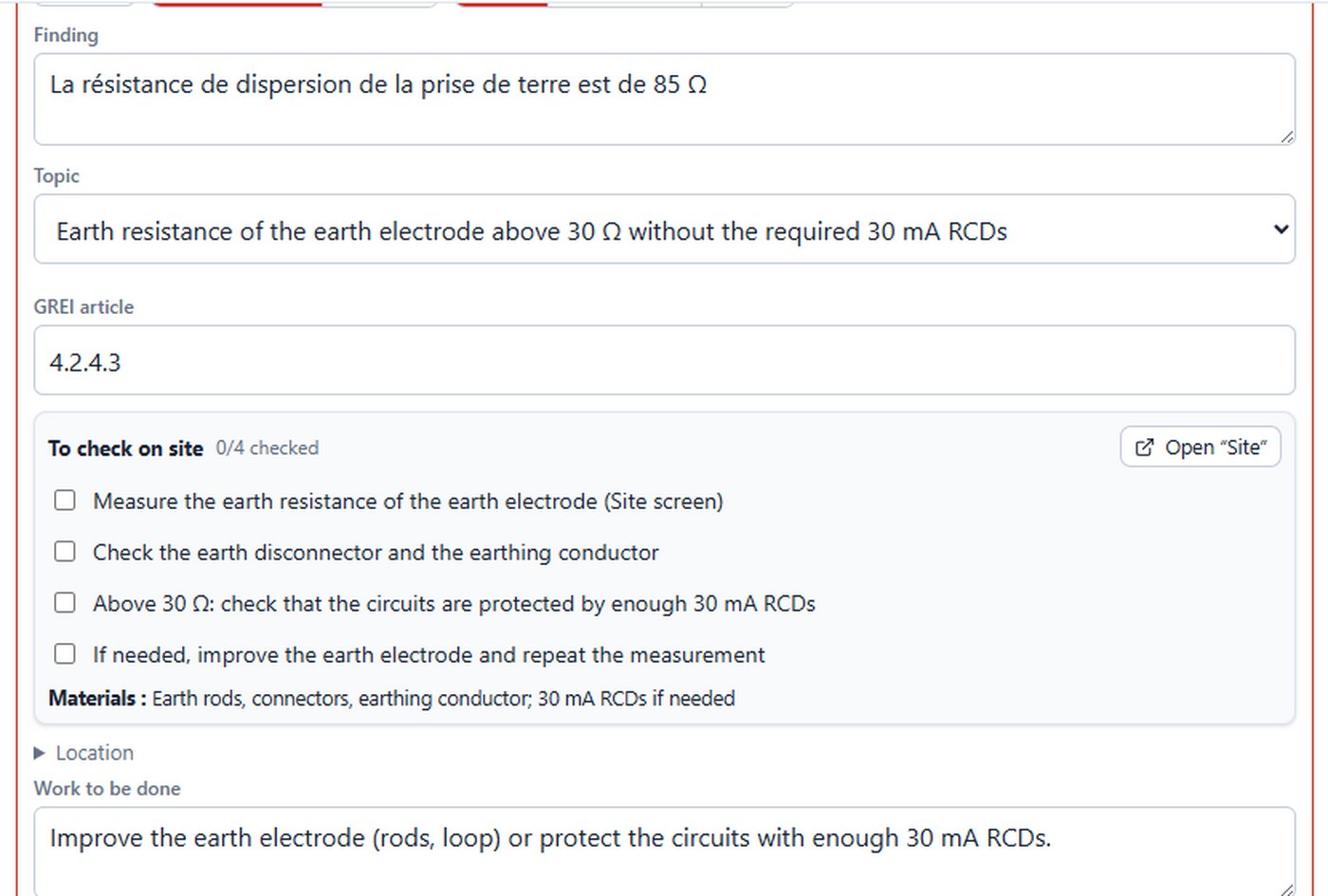
  1. Copy out each infringement: the topic and the GREI article are recognised as you type.
  2. Tick the checks done on site, add before and after photos, then set the infringement to “Fixed”.
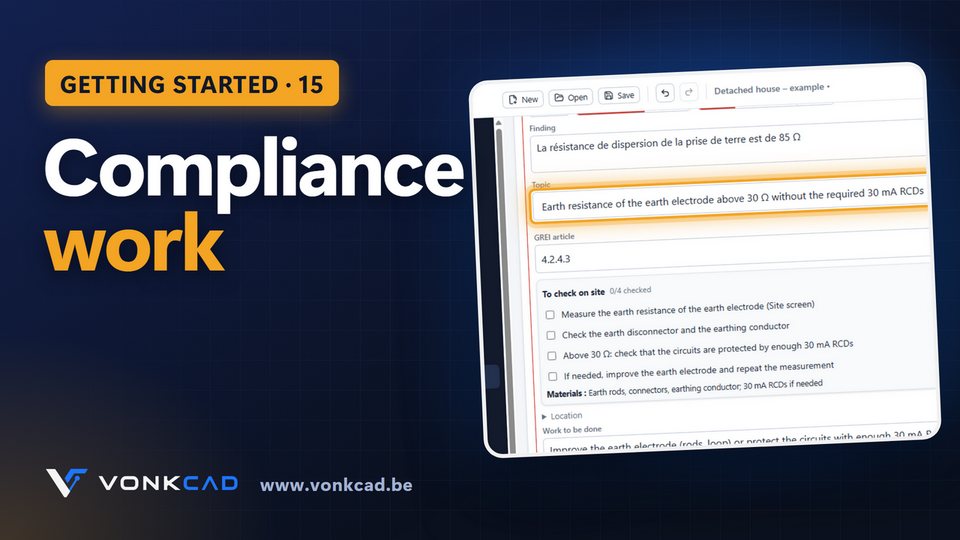
A recognised infringement: topic, article, checks and materials to plan for.

The clearance report

Where

  1. PDF file
  1. The work plan and the infringement clearance report are added to the PDF file, with the photos.

Good to know

The report prepares the new inspection; only the approved inspection body certifies compliance.

↑ Back to contents

Bill of materials

Calculated from the board and the plans: manufacturer references, quantities, cable lengths and purchase prices.

Video coming soon

Read the list

Where

  1. Check & outputs
  2. Bill of materials
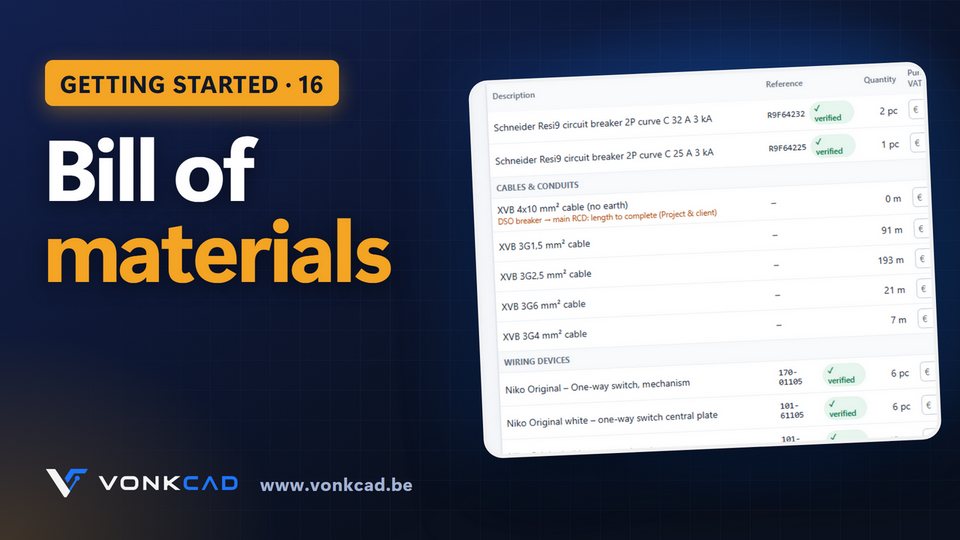
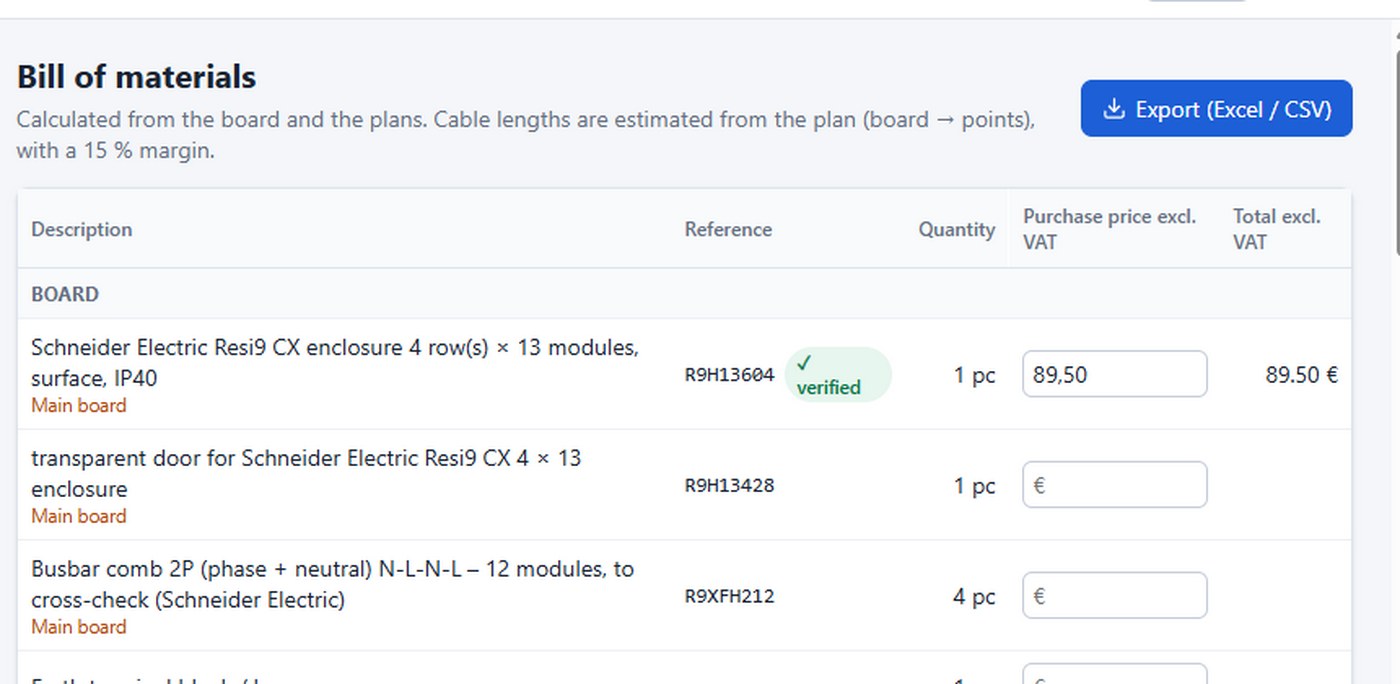
  1. Enclosure, protection devices, wiring devices, home automation, cables, boxes and conduit, sorted by group.
  2. Each reference is “verified” against a manufacturer data sheet, or “to cross-check” when it is deduced from the range coding.
Verified references and purchase prices excl. VAT.

Prices and export

Where

  1. Bill of materials
  1. Enter your purchase prices excl. VAT, or import your wholesaler’s price list (chapter 18).
  2. “Export (Excel / CSV)” for ordering or for your business software.
↑ Back to contents

Catalogue and wholesaler price list

All references by category, then by brand, with your corrections and prices saved on the computer for all your projects.

Video coming soon

Browse the catalogue

Where

  1. Configuration
  2. Catalogue
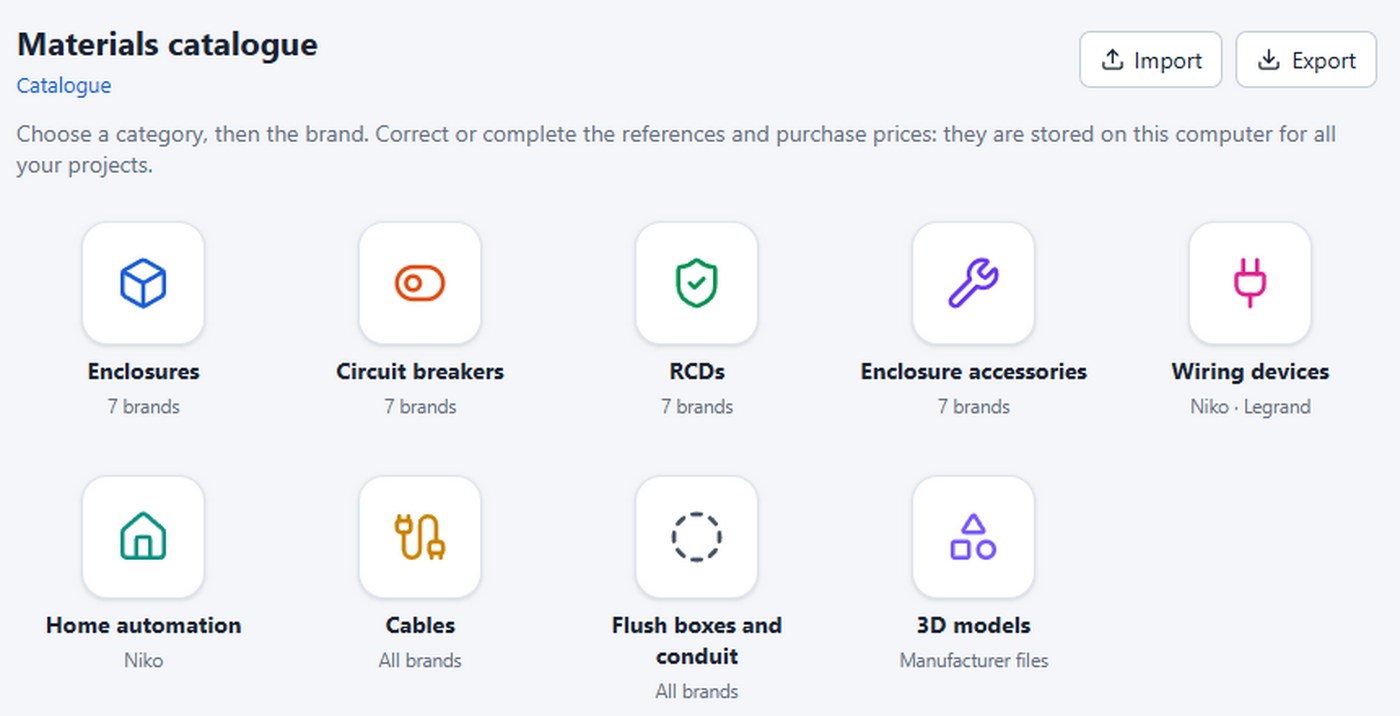
  1. Choose a category: enclosures, circuit breakers, RCDs, enclosure accessories, wiring devices, home automation, cables, flush boxes and conduit, 3D models.
  2. Then the brand, then the items. The breadcrumb trail takes you back.
The catalogue, one tile per category.

Correct a reference or a price

Where

  1. Catalogue
  2. category
  3. brand
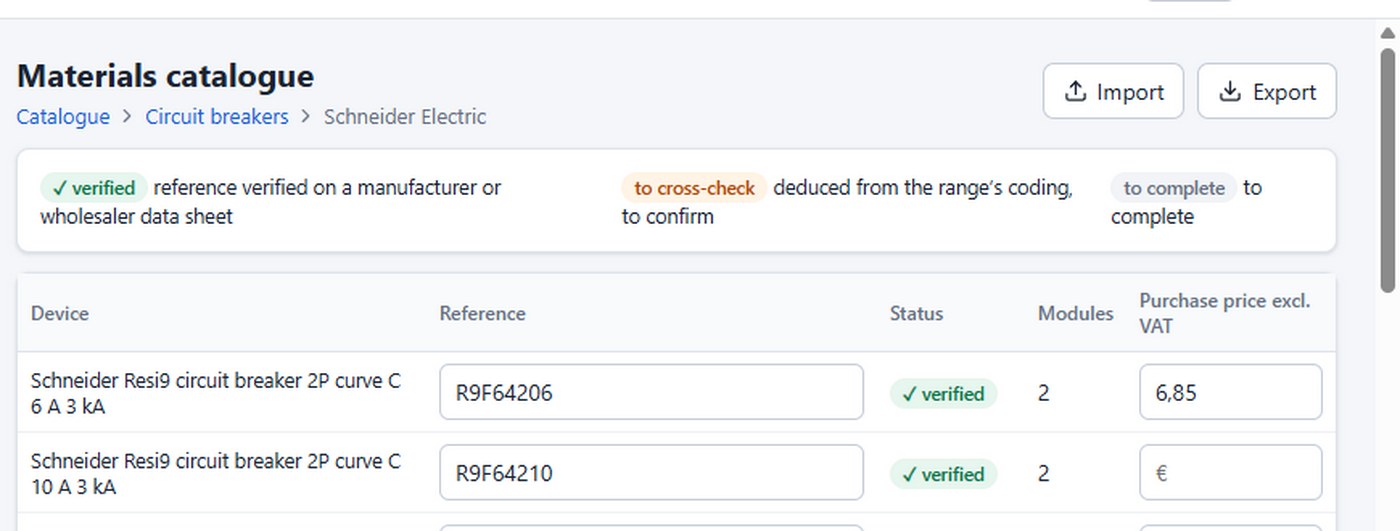
  1. Correct a reference or add your price: they are saved on this computer and used for all your projects.
  2. “Export” and “Import” carry your references and prices over to another computer.
Schneider circuit breakers: reference, status and price.
↑ Back to contents

Quote and “My rates”

The quote is calculated from the project, section by section: materials at purchase price × your markup, labour at a flat rate or by the hour.

The project quote

Where

  1. Check & outputs
  2. Quote
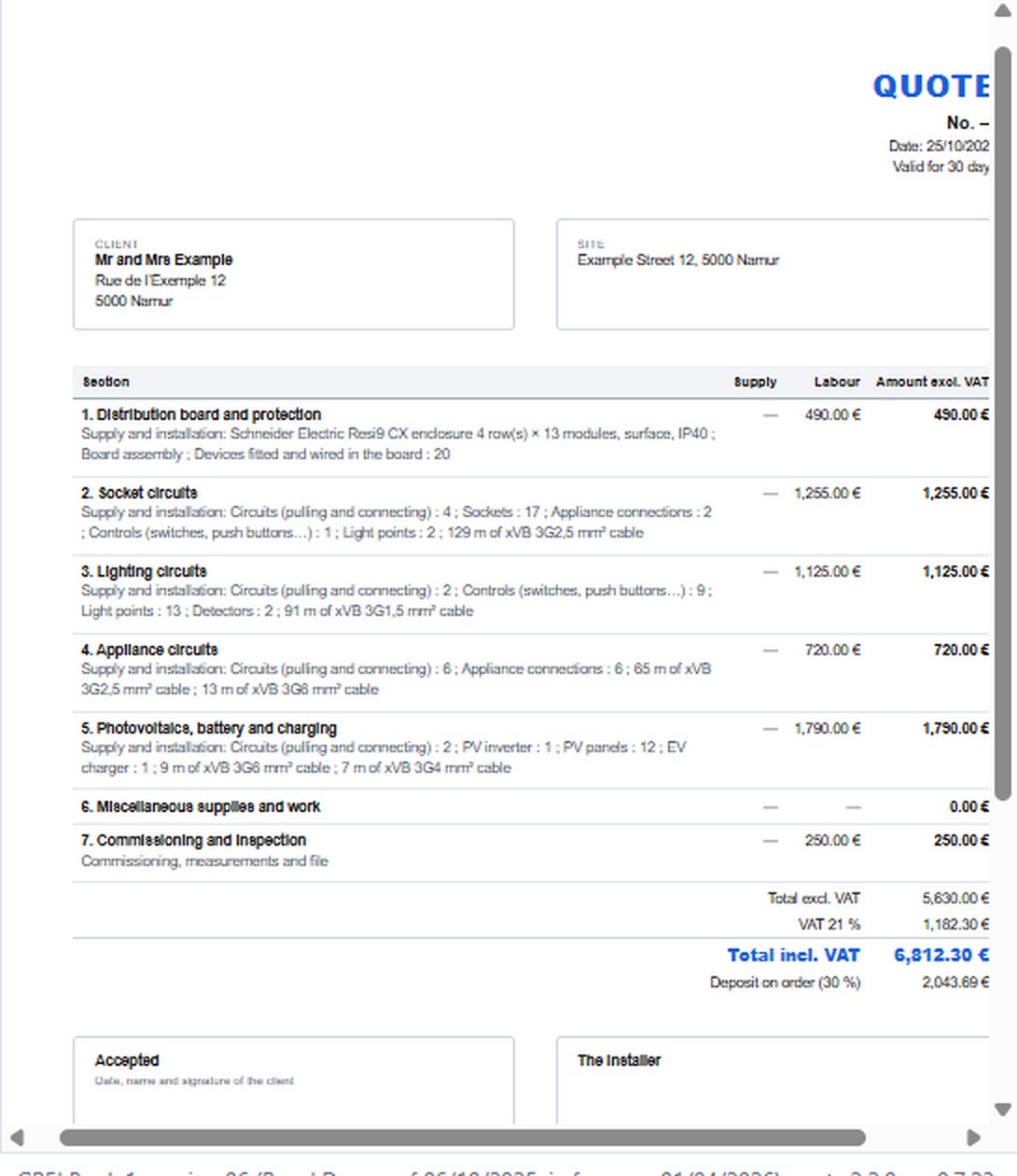
  1. The sections: board, sockets, lighting, appliances, home automation, energy, security, miscellaneous, commissioning.
  2. Each section states what it includes, for example “Sockets: 17; 129 m of cable”.
The A4 quote, section by section.

Import the wholesaler’s price list

Where

  1. Quote
  2. Import a price list (CSV, Excel)
  1. Choose your wholesaler’s CSV or Excel (.xlsx) file.
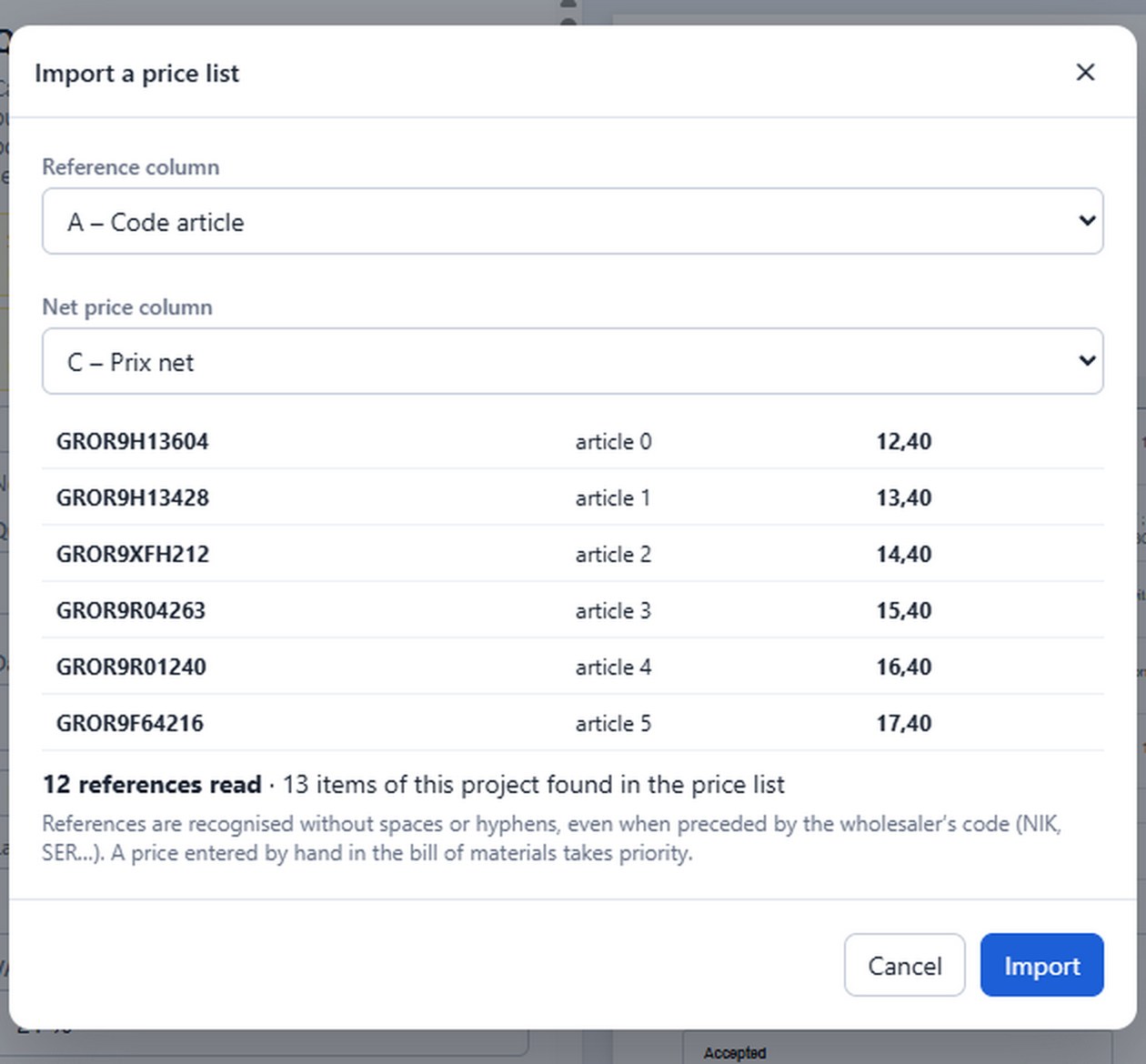
  2. The reference and net price columns are detected automatically; references are recognised even when preceded by the wholesaler’s code.
  3. A price entered by hand takes priority.
The imported price list: references read, project items found.

My rates

Where

  1. Quote
  2. My rates
  1. Hourly rate, markup on materials, flat rate and time for each unit, validity, deposit, terms, IBAN, numbering.
  2. Saved on the computer, for all your quotes.

VAT, lines and PDF

Where

  1. Quote
  1. VAT 21 %, 6 % (private home over 10 years old, with the certificate statement) or reverse charge.
  2. Add lines and a discount, then “Generate PDF”: A4 portrait, numbered, with an “Accepted” signature box.
↑ Back to contents

PDF inspection file

The complete installation file, tailored to its recipient: the approved inspection body, the client or yourself.

Video coming soon

Choose who it is for

Where

  1. Check & outputs
  2. PDF file
  3. For whom?
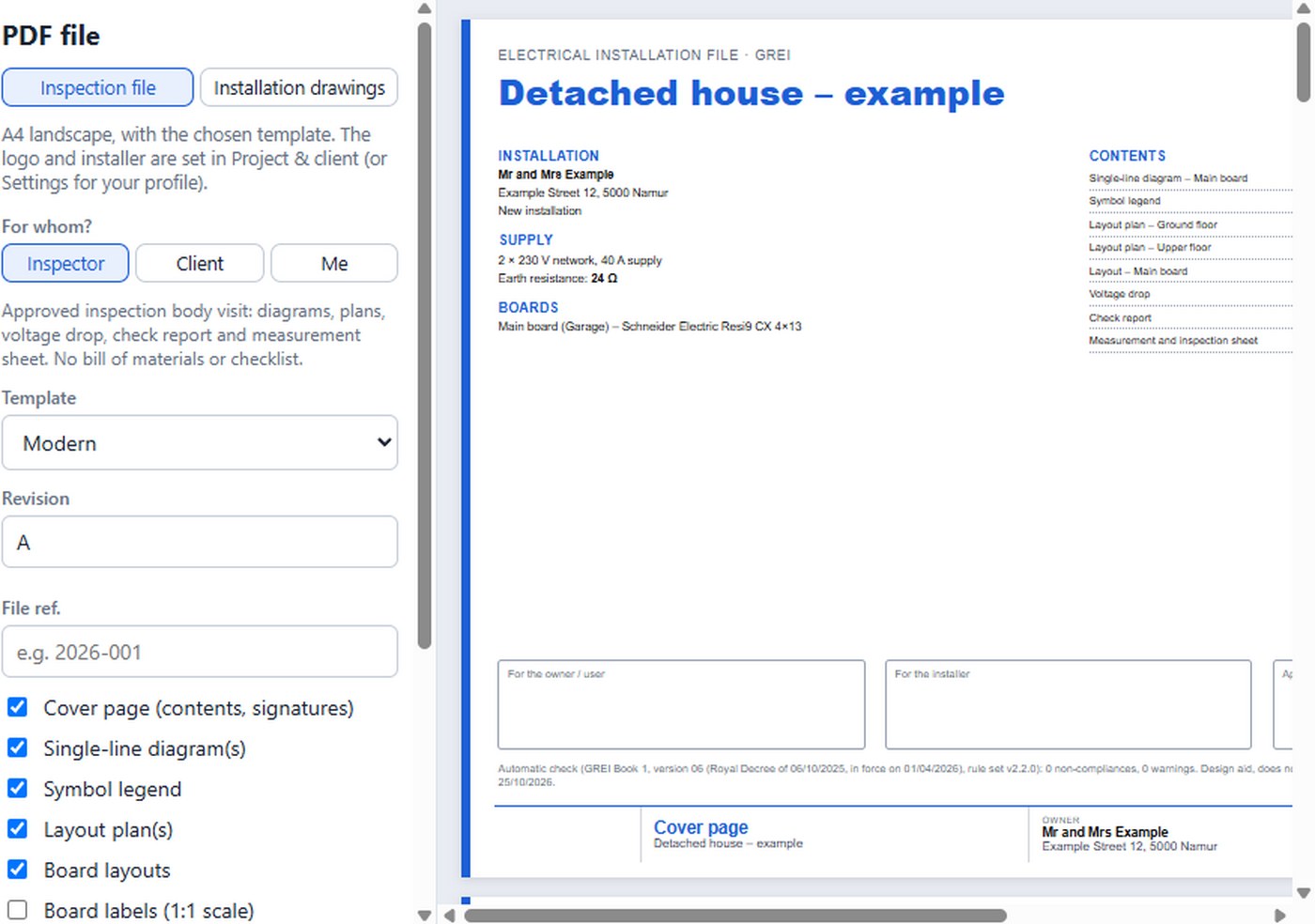
  1. “Inspector”: check report and measurements, without bill of materials or checklist.
  2. “Client”: the diagrams and plans to keep.
  3. “Me”: the whole file.
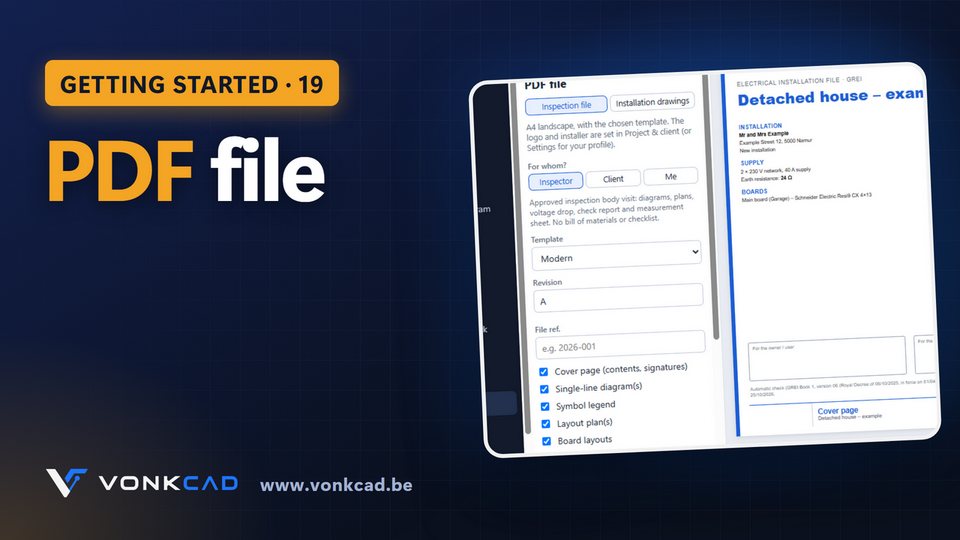
The file for the inspector and its preview.

Set up and generate

Where

  1. PDF file
  1. Choose the template, the revision and the file reference.
  2. Tick or untick sections: the choice switches to “Custom”.
  3. “Generate PDF”: A4 landscape, with your logo.
↑ Back to contents

“Installation drawings” PDF

The wall elevations as a PDF: a site document for you, the kitchen fitter or the plasterer, separate from the inspection file.

Video coming soon

Output the installation drawings

Where

  1. PDF file
  2. Installation drawings
  1. Choose “Installation drawings” at the top of the screen.
  2. Add the layout plans if needed, then “Generate PDF”.
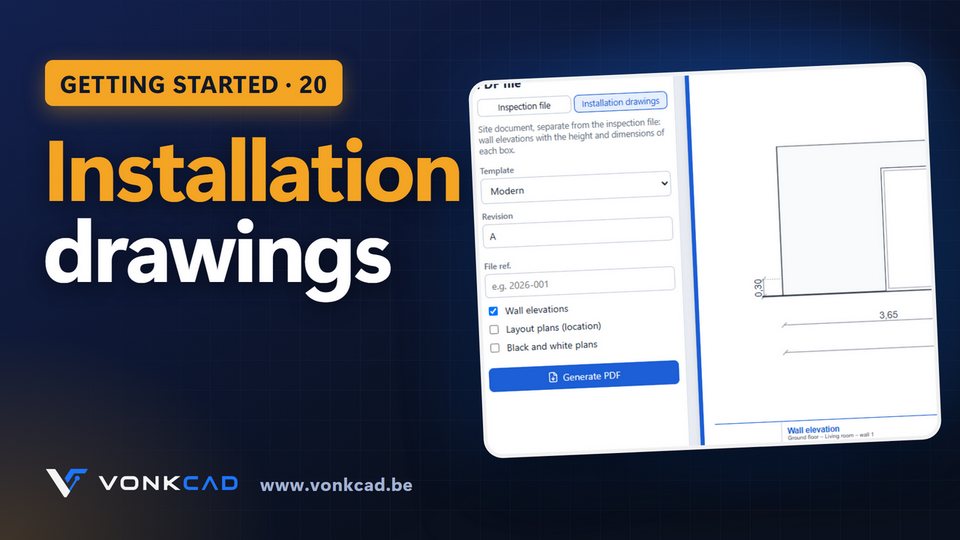
The wall elevations, room by room, dimensions included.
Good to know

The installation drawings are not part of the inspection file and do not change its revision.
↑ Back to contents

Revisions and revision letters

When the project changes after the file has been issued, Vonkcad suggests a new revision and keeps the history on the cover page.

Video coming soon

Move to the next revision

Where

  1. PDF file
  2. Generate PDF
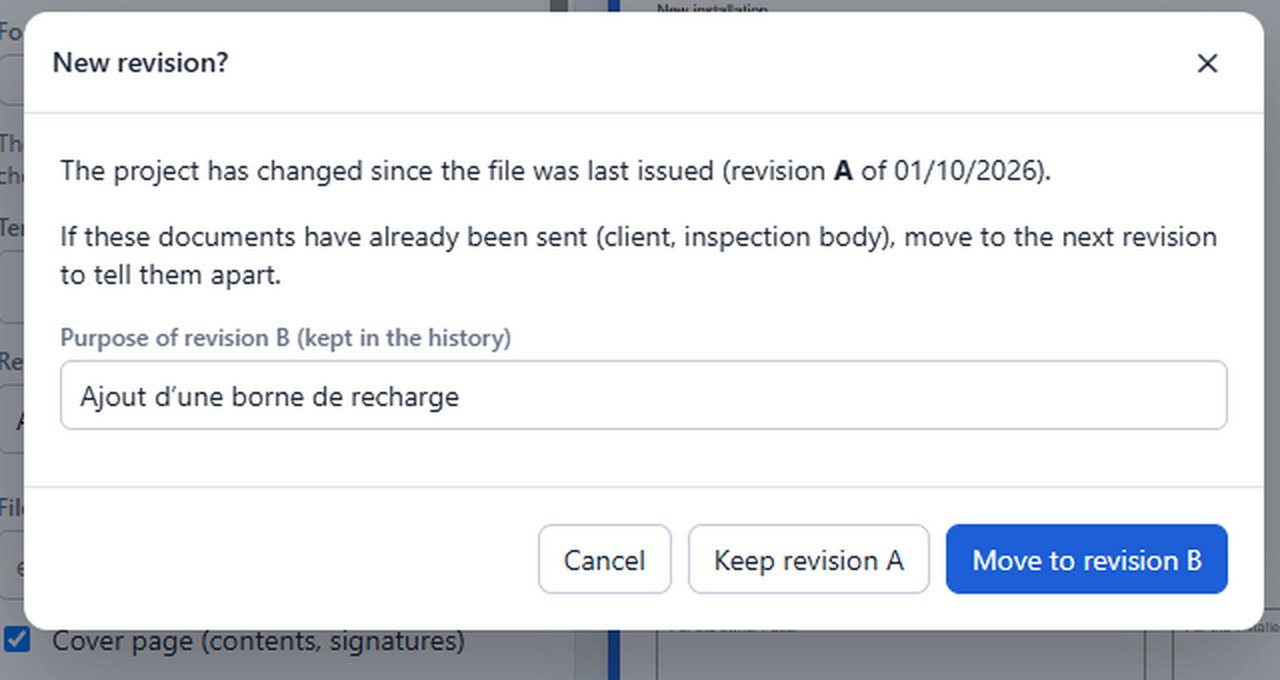
  1. If the project has changed since the last issue, Vonkcad tells you.
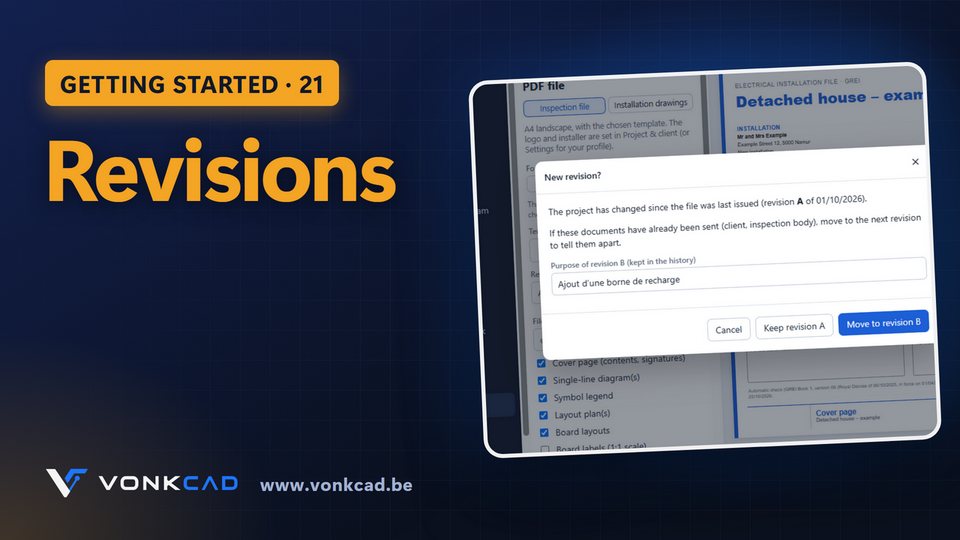
  2. When generating the PDF, choose “Move to revision B” and describe the purpose of the revision, or keep the current revision.
  3. The revision history is shown on the cover page.
The new revision suggested and the purpose of the revision.
↑ Back to contents

Keyboard shortcuts

Time-saving shortcuts, throughout the software and on the plan.

Everywhere

Ctrl + N
new project
Ctrl + O
open a project
Ctrl + S
save
Ctrl + Z
undo
Ctrl + Y
redo
Esc
close a window

Board & circuits

Ctrl + D
duplicate the circuit
Delete
delete
Ctrl + A
select all
Ctrl + click
multiple selection

Plan: tools

V
select
M
wall
P
room
O
door or window
C
dimension
T
text
Z
hatched zone
R
rotate the selection
Q (hold)
the Spark: quick menu around the cursor (drag and release); by finger: long press on an empty spot

Plan: drawing

Digits + Enter
exact segment length
Enter
finish the line, or repeat the last command
F3
object snap
F7
grid
F8
orthogonal mode
F9
grid snap
F11
tracking
Space + drag
pan the view
Mouse wheel
zoom; double-click the wheel: view all
Shift + click
add to the selection
Ctrl + D
duplicate
Delete
delete

Wall elevations

Alt + drag
move to the nearest centimetre
↑ Back to contents

Troubleshooting and contact

Answers to the most frequent questions, and how to reach us.

“Connect this PC to the Internet” appears

Vonkcad works for 48 hours without Internet. Reconnect the computer: the licence renews itself at the next start-up.

Where are my projects?

A project is saved in a .rgie file (“Save”, Ctrl + S). Vonkcad also keeps an automatic backup on the computer: at the next start-up, “Resume” on the Home screen reopens the last project.

Another electrician opens my project in Dutch

No problem: a project opens in all three languages. Only the texts you typed stay as they are.

The update will not install

Click “Update: restart” at the top of the screen. Otherwise, download the latest version from vonkcad.be, in “My area”.

A reference in the bill of materials is wrong

Correct it in the catalogue (chapter 17): the correction applies to all your projects. Report it to us and we will correct it for everyone.

A question, an idea, a problem? Write to us:

contact@vonkcad.be

The Vonkcad team will get back to you.

↑ Back to contents